Configuration
Traffic Filtering rules can be configured from the User Console or programmatically via the Soracom API. For an overview of Traffic Filtering, filtering types, and how rules are evaluated, see Traffic Filtering. For rule specifications, see IP Rules and Domain Rules.
User Console
- Sign in to the User Console. From the Menu, open the VPG screen.
- From the list of VPGs, click the name of the VPG you want to configure to open its settings page.
-
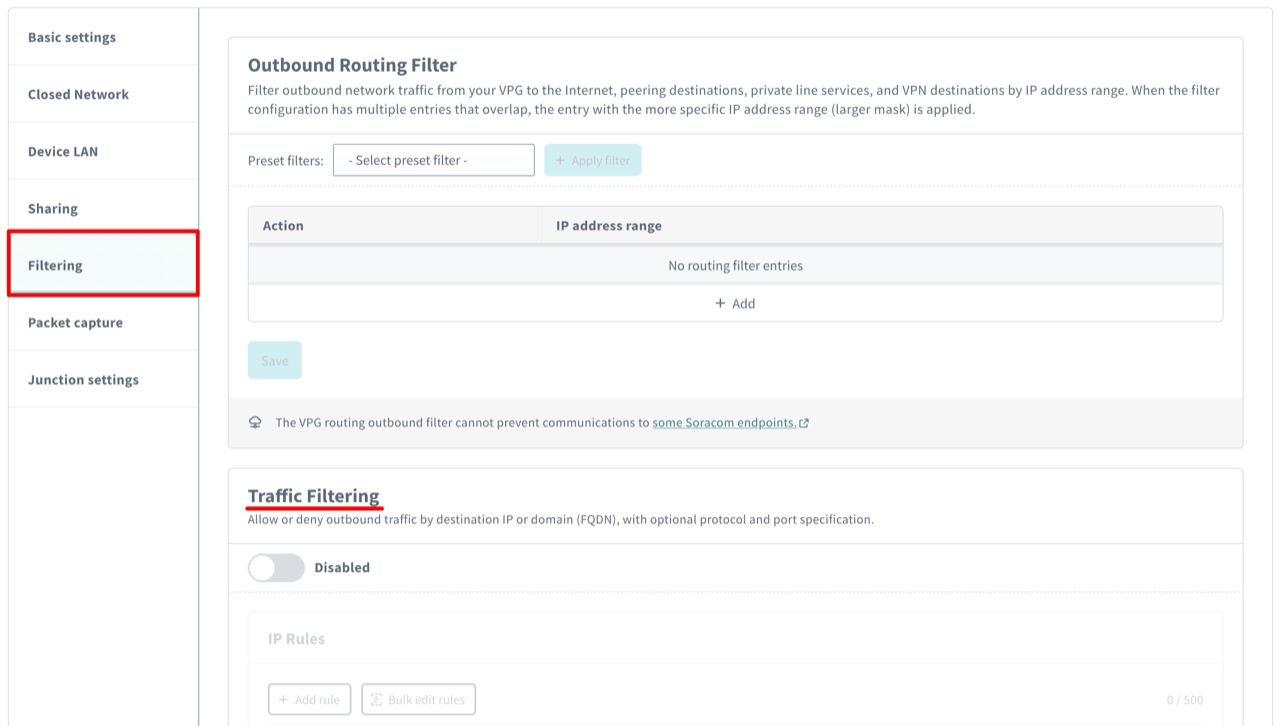
Click the Filtering tab.
The Filtering tab contains two sections: Outbound Routing Filter (the Outbound Filter) and Traffic Filtering. Configure Traffic Filtering in the Traffic Filtering section.
-
In the Traffic Filtering section, turn the switch to Enabled. A confirmation dialog (Communication will be temporarily stopped) explains that enabling or disabling Traffic Filtering briefly interrupts all VPG traffic in order to apply the new setting; click OK to proceed.
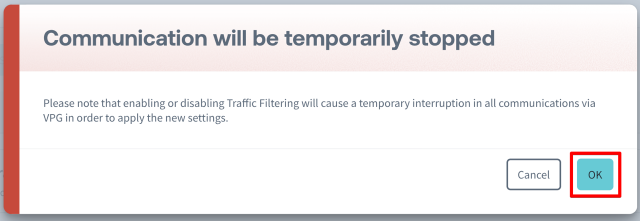
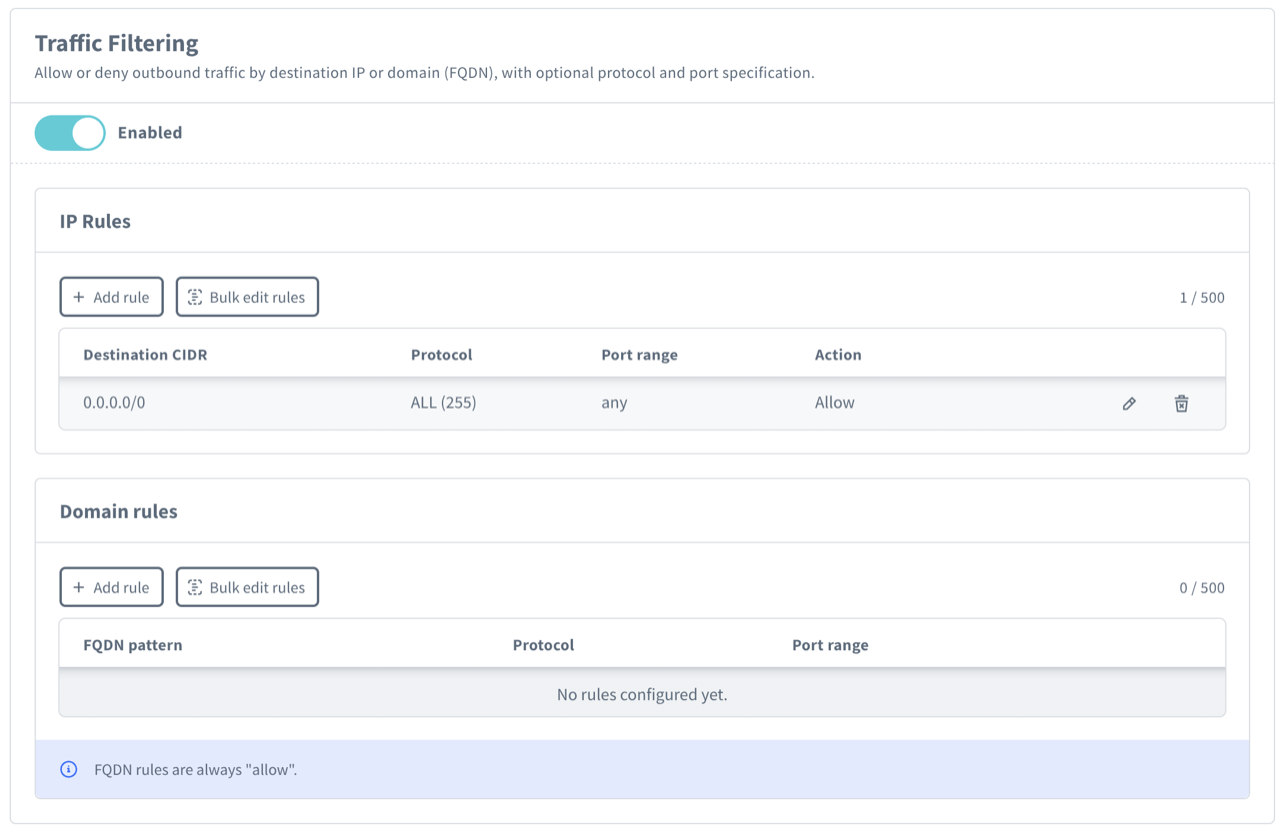
When Traffic Filtering is first enabled on a VPG that has no IP rules yet, a permissive default rule (
allow 0.0.0.0/0, protocolALL, any port) is added automatically so that existing traffic is not blocked. Edit or remove this rule before relying on a default-deny posture.
Once enabled, the Traffic Filtering section shows two rule lists: IP Rules and Domain Rules. The two lists are saved independently.
Adding Rules
- In the IP Rules or Domain Rules list, click Add rule to open the rule editor.
-
Fill in the fields:
IP Rules: Destination CIDR (IPv4), Protocol, port, and Action (Allow / Deny).
Domain Rules: FQDN pattern, Protocol, and port. The action is always Allow.
The Protocol selector offers ALL (255), TCP (6), UDP (17), ICMP (1), or Custom… (any protocol number 0-255). The port input adapts to the selected protocol:
Protocol Port input TCP / UDP Any / Single / Range radio ICMP Any / Specific (type / code) radio; when Specific, enter the ICMP Type and Code ALL / other port-less protocols no port input (the rule applies to all traffic of the selected protocol) For the TCP/UDP port radio:
Radio Description Any Matches all ports Single Enter a single port number Range Enter the start and end of the destination port range 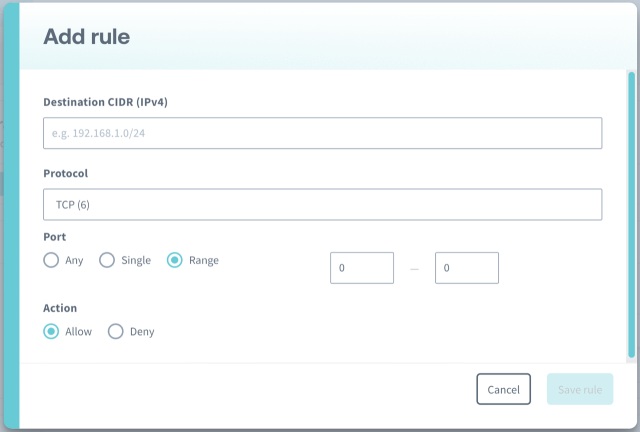
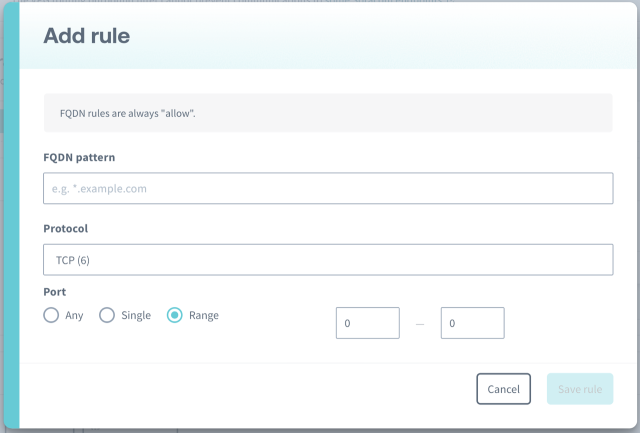
- Click Save rule to add the rule to the list. At this point the rule is staged but not yet persisted.
-
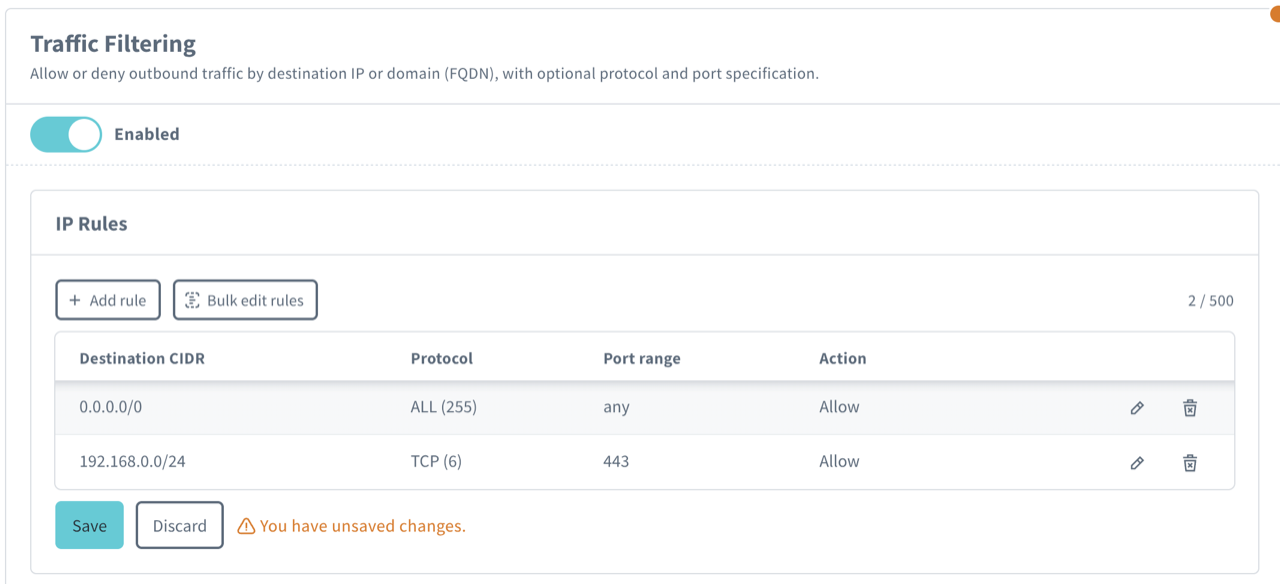
Repeat for additional rules, then click Save below the list to persist your changes.
The Save and Discard buttons appear below the list only when there are unsaved changes ("You have unsaved changes." notice is shown). Discard reverts staged edits. The IP Rules and Domain Rules lists are saved independently; saving one does not save pending edits in the other.
- Re-establish the data sessions of the devices that use the VPG so the new rules take effect (see When Rule Changes Take Effect).
For rule evaluation order and priority, see IP Rules and Domain Rules.
Bulk Editing Rules
For a large number of rules, or to copy a rule set from one VPG to another, edit rules as CSV.
-
In the IP Rules or Domain Rules list, click Bulk edit rules to open the CSV editor. The editor is pre-populated with the current rules in CSV form, and the leading comment line documents the format.
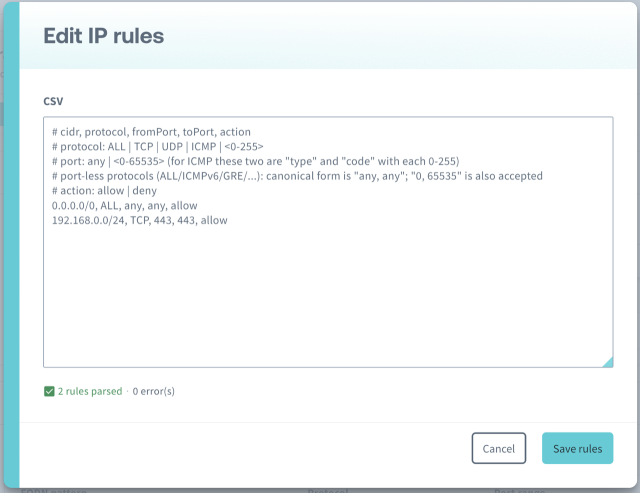
- Edit the CSV. The editor reports how many rules were parsed and how many errors were found. Click Save rules to replace the list with the parsed rules. This loads the result into the list but does not persist it yet.
- Click Save below the list to persist your changes.
IP rule CSV format: cidr, protocol, fromPort, toPort, action
# cidr, protocol, fromPort, toPort, action

# Allow all TCP/443 (HTTPS) traffic
0.0.0.0/0, TCP, 443, 443, allow

# Deny SSH to a specific subnet
10.0.0.0/8, TCP, 22, 22, deny

# Port-less protocol (canonical "any/any")
0.0.0.0/0, ALL, any, any, allow

# ICMP Echo Request (type=8, code=0)
8.8.8.8/32, ICMP, 8, 0, allow
Domain rule CSV format: fqdnPattern, protocol, fromPort, toPort (no action column; the action is always allow)
# fqdnPattern, protocol, fromPort, toPort

*.example.com, ALL, any, any
api.example.com, TCP, 443, 443
CSV common rules:
- Lines starting with
#are comments. - Whitespace around commas is ignored.
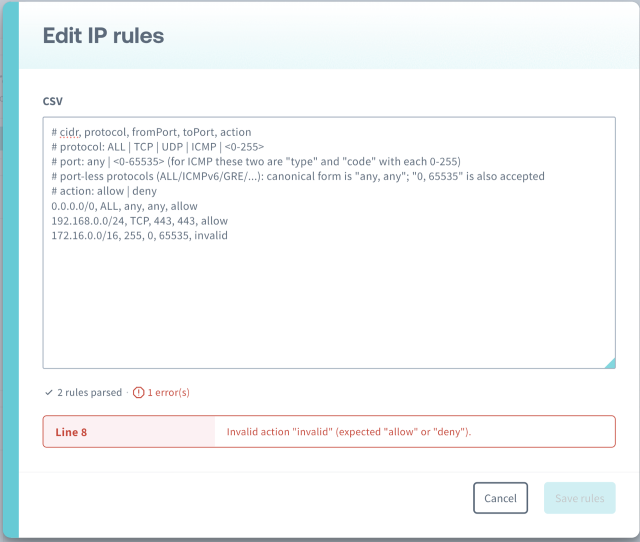
- Errors are reported per line. If any line has an error, Save rules is disabled; fix all errors before clicking Save rules.
protocolaccepts the namesALL,TCP,UDP,ICMP, or any numeric value 0-255.fromPort/toPortacceptany(canonical) for the "match any" form. For TCP/UDP,0, 65535is also accepted for compatibility.
Disabling Traffic Filtering
In the Traffic Filtering section, turn the switch to Disabled. The same Communication will be temporarily stopped confirmation dialog appears; click OK to proceed.
Disabling Traffic Filtering does not delete your configured IP and domain rules. They are retained and applied again the next time you enable Traffic Filtering. To remove rules, delete them from the IP Rules / Domain Rules lists.
Examples
Example 1: HTTPS-Only Allow-List
Allow only HTTPS, deny everything else. The explicit 0.0.0.0/0 / ALL / deny rule pairs with the narrower TCP/443 allow so that the most-specific-match rule wins for HTTPS while everything else is rejected by the broad deny.
IP Rules:
# cidr, protocol, fromPort, toPort, action
0.0.0.0/0, ALL, any, any, deny
0.0.0.0/0, TCP, 443, 443, allow
Example 2: API Allow-List by FQDN
Allow access to the customer's API server and the Soracom API. To express "only these domains", combine this domain allow-list with a 0.0.0.0/0 / ALL / deny IP rule as shown in Example 4.
Domain Rules:
# fqdnPattern, protocol, fromPort, toPort
*.example.com, TCP, 443, 443
*.soracom.io, TCP, 443, 443
Example 3: External DNS and NTP
Allow external DNS (Google Public DNS at 8.8.8.8) and external NTP (NIST time server). Soracom-provided DNS (100.127.0.53, 100.127.1.53) and NTP are already covered by the implicit allow for 100.64.0.0/10, so these rules are only needed when devices use third-party DNS/NTP. The IP Rules list replaces all existing rules when saved; include these rules alongside the rest of your IP rule set.
IP Rules:
# cidr, protocol, fromPort, toPort, action
8.8.8.8/32, UDP, 53, 53, allow
132.163.97.0/24, UDP, 123, 123, allow
Example 4: FQDN Allow with Default-Deny
Because domain rules support only allow, the canonical pattern for "block everything except a specific set of domains" is to combine a broad IP deny with one or more domain allow rules. The platform monitors DNS resolutions of the allowed domains and generates dynamic /32 IP rules for the resolved IPs, which (being more specific than the 0.0.0.0/0 deny) win and let the traffic through.
Allow HTTPS only to any subdomain of example.com and block everything else:
Domain Rules:
# fqdnPattern, protocol, fromPort, toPort
*.example.com, TCP, 443, 443
IP Rules:
# cidr, protocol, fromPort, toPort, action
0.0.0.0/0, ALL, any, any, deny
With this configuration, a device that resolves api.example.com to 203.0.113.10 will have a dynamic IP rule allow TCP 443 → 203.0.113.10/32 generated automatically (see Dynamic IP Rules). Traffic to that IP on TCP/443 is allowed; everything else is denied by the broad IP deny.
Programmatic Usage
The following endpoints manage VPG-level Traffic Filtering. The VPG must be a supported type (see Limitations) and the operator must have the Traffic Filtering feature enabled.
Soracom CLI subcommands for Traffic Filtering are not yet available. CLI tabs (mirroring sibling VPG-option pages) will be added in a follow-up update once the corresponding subcommands ship.
Enable Traffic Filtering
Soracom API
To access the Soracom API, first use the auth API to obtain an API Key and Token. Refer to the API Usage Guide for instructions on how to use the API Key and Token in API requests.
POST /v1/virtual_private_gateways/<VPG-ID>/traffic_filtering/enable enables Traffic Filtering on the VPG. A successful call returns 201 Created.
Disable Traffic Filtering
Soracom API
To access the Soracom API, first use the auth API to obtain an API Key and Token. Refer to the API Usage Guide for instructions on how to use the API Key and Token in API requests.
POST /v1/virtual_private_gateways/<VPG-ID>/traffic_filtering/disable disables Traffic Filtering on the VPG. A successful call returns 204 No Content.
Set IP Rules
Soracom API
To access the Soracom API, first use the auth API to obtain an API Key and Token. Refer to the API Usage Guide for instructions on how to use the API Key and Token in API requests.
Each IP rule must include:
type(string, required): Always"ip".cidr(string, required): Destination IPv4 CIDR.protocol(number, required): IANA protocol number (0-255);255= ANY.fromPort,toPort(number, optional): Port range or ICMP type/code. Semantics depend onprotocol(see Protocol and Port Semantics).action(string, required):"allow"or"deny".
PUT /v1/virtual_private_gateways/<VPG-ID>/traffic_filtering/uplink_rules replaces the entire IP rule list for the VPG. A successful call returns 200 OK with the persisted rules as { "rules": [...] }. Pass an empty array ({ "rules": [] }) to clear all IP rules. If any rule fails validation, the entire request is rejected with 400 Bad Request and no changes are applied; the response body includes additionalInfo.ruleIndex (0-based index of the failing rule) to identify the offending rule. When fromPort and toPort are omitted for port-less protocols, the response normalizes them to 0 and 65535; account for this when comparing request and response bodies.
curl -X PUT \
|  -H 'X-Soracom-API-Key: <MY-API-KEY>' \
|  -H 'X-Soracom-Token: <MY-TOKEN>' \
|  -H 'Content-Type: application/json' \
|  -d @/path/to/uplink-rules.json \
| https://g.api.soracom.io/v1/virtual_private_gateways/<VPG-ID>/traffic_filtering/uplink_rulesExample request body:
{
  "rules": [
    {
      "type": "ip",
      "cidr": "192.168.1.0/24",
      "protocol": 6,
      "fromPort": 80,
      "toPort": 443,
      "action": "allow"
    },
    {
      "type": "ip",
      "cidr": "0.0.0.0/0",
      "protocol": 1,
      "action": "allow"
    }
  ]
}
Set Domain Rules
Soracom API
To access the Soracom API, first use the auth API to obtain an API Key and Token. Refer to the API Usage Guide for instructions on how to use the API Key and Token in API requests.
Each domain rule must include:
type(string, required): Always"fqdn".fqdnPattern(string, required): Destination FQDN; see Domain Rules for wildcard syntax.protocol,fromPort,toPort: Same as IP rules.action(string, required): Always"allow".
PUT /v1/virtual_private_gateways/<VPG-ID>/traffic_filtering/fqdn_rules replaces the entire domain rule list for the VPG. A successful call returns 200 OK with the persisted rules as { "rules": [...] }. Pass an empty array to clear all domain rules. If any rule fails validation, the entire request is rejected with 400 Bad Request and no changes are applied; the response body includes additionalInfo.ruleIndex (0-based index of the failing rule) to identify the offending rule.
curl -X PUT \
|  -H 'X-Soracom-API-Key: <MY-API-KEY>' \
|  -H 'X-Soracom-Token: <MY-TOKEN>' \
|  -H 'Content-Type: application/json' \
|  -d @/path/to/fqdn-rules.json \
| https://g.api.soracom.io/v1/virtual_private_gateways/<VPG-ID>/traffic_filtering/fqdn_rulesExample request body:
{
  "rules": [
    {
      "type": "fqdn",
      "fqdnPattern": "*.example.com",
      "protocol": 6,
      "fromPort": 443,
      "toPort": 443,
      "action": "allow"
    }
  ]
}
Reading the Current Configuration
Soracom API
To access the Soracom API, first use the auth API to obtain an API Key and Token. Refer to the API Usage Guide for instructions on how to use the API Key and Token in API requests.
The standard VPG details endpoint,
getVirtualPrivateGateway
, includes the current Traffic Filtering state. The uplinkFilterRules and fqdnFilterRules arrays are populated when Traffic Filtering is enabled.