Session Status
An IoT SIM's session status indicates whether the SIM currently has an active data connection: Online (connected) or Offline (not connected). This information is useful for troubleshooting connectivity issues, verifying that a device is communicating, or confirming when a device last connected to the network. Session status is independent of subscriber status, which represents the SIM's subscription lifecycle state (Ready, Active, Inactive, etc.). For a comparison of these two states, see Subscriber Status vs. Session Status.
You can view additional details of an IoT SIM's current or past sessions, as well as check when the SIM last registered with the cellular network.
The ONLINE and OFFLINE statuses only refer to whether the SIM currently has an active data session.
- When a device successfully registers with a network and creates a data session, the session status will appear as ONLINE.
- In some cases, a device may be configured to create a data session manually, or it may have encountered an error when creating a data session. As the SIM does not have an active data session, it will appear as OFFLINE even if the device is powered on.
- Similarly, if a session currently appears ONLINE and the device is abruptly disconnected from the network (for example, because its battery was removed or power input was disconnected), the device will not have a chance to notify the network of ending the data session. As a result, the session may continue to appear ONLINE for up to four hours after the device has been powered off.
Viewing Session Logs
To view detailed session history:
-
Sign in to the User Console. From the Menu, open the SIM Management screen.
-
From the list of subscribers, click the for the SIM you want to view, then click the Details button.
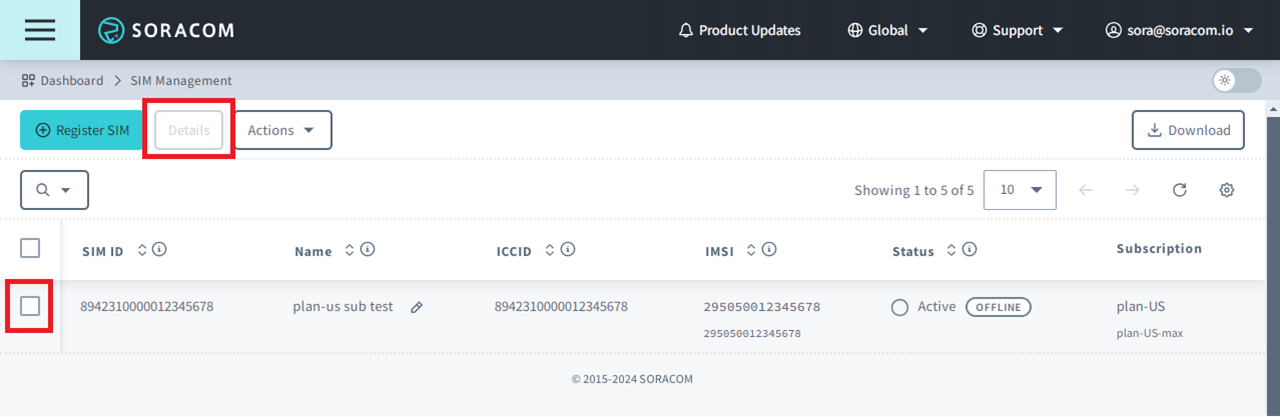
- From the SIM Details dialog, click the Session details tab.
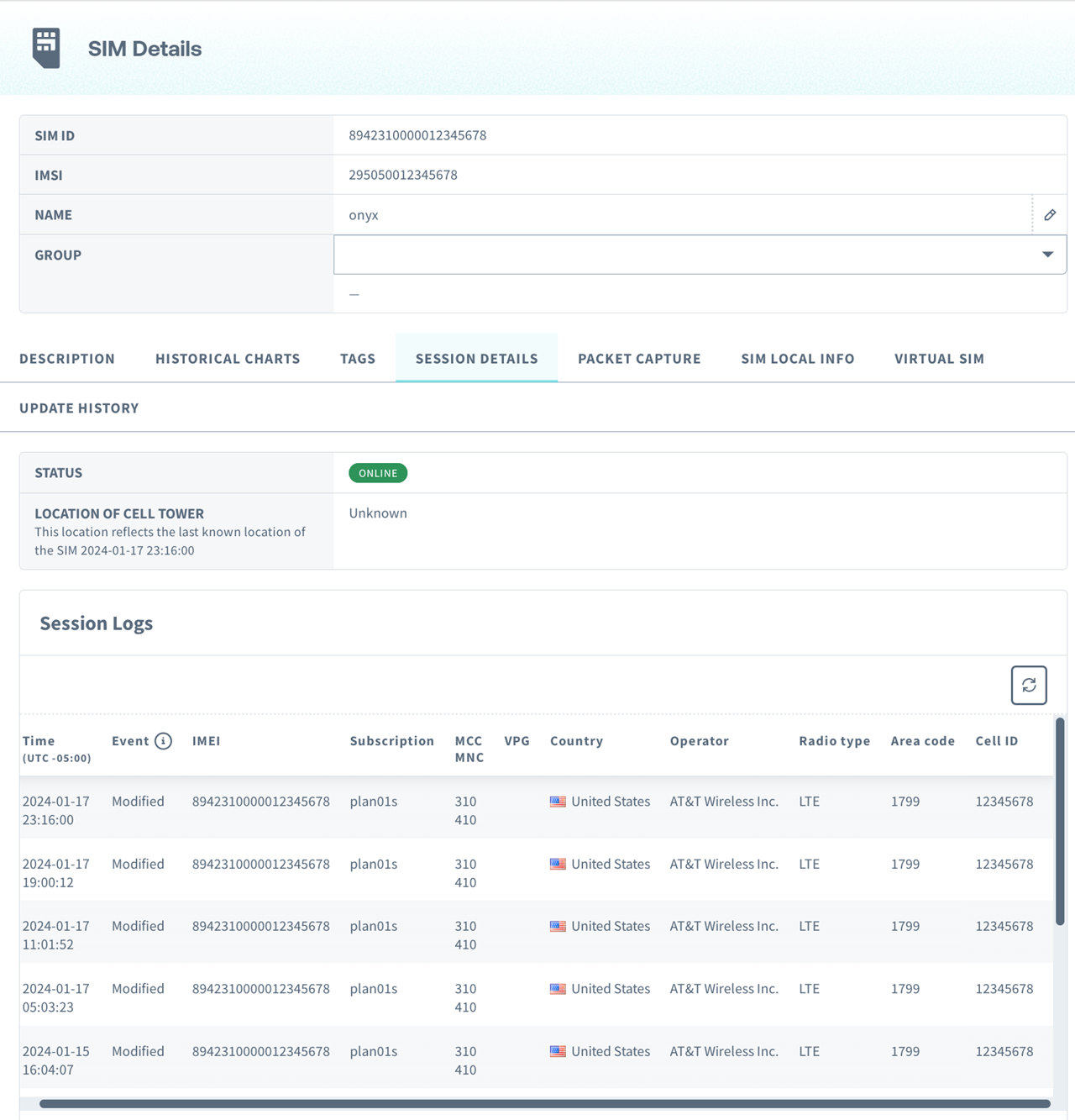
Within the Session details tab, you will see a Session Logs table with the following information:
- Time - The timestamp of the session event
- Event - The type of behavior for the event
- Created - Indicates that the device created a new data session
- Modified - Indicates that an existing data session was modified, such as moving between radio towers, or switching from 3G to 4G/LTE. Soracom cannot provide the root cause of modified events, only that they have occurred
- Deleted - Indicates that a data session was closed
- IMEI - The IMEI of the device using the IoT SIM
- MCC - The Mobile Country Code that corresponds to the country where the IoT SIM is connected
- MNC - The Mobile Network Code that corresponds to the network carrier where the IoT SIM is connected
- Country - The country where the IoT SIM is connected, based on the reported MCC
- Operator - The local mobile network carrier where the IoT SIM is connected, based on the reported MNC
- Radio type - The connection technology, such as GSM, 3G, LTE, LTE-M, or NB-IoT
- Area code - The Location Area Code where the IoT SIM is connected
- Cell ID - The Cell ID of the specific Base Transceiver Station where the IoT SIM is connected
Session logs are retained for a maximum of 32 days and will no longer appear afterward. Session history records will also be cleared if the session remains ONLINE for 32 days.
If you see a pattern of sessions being deleted after one or four hours, your SIM may be experiencing an idle session timeout.
Cellular sessions will be deleted by Soracom if they exist for a certain period, dependent on the Rendezvous Point being used, without sending data. Details about the specific duration for each subscription can be found on the SIM Types page. This timeout does not prevent devices from creating new sessions if they are programmed to do so. The idle session timeout duration may be changed without notice.
If the idle session timeout timer is affecting your LTE-M deployment that is using eDRX (extended Discontinuous Reception) or PSM (Power Saving Mode) contact Soracom Support for assistance.
Checking Last Online
The Last online field shows the timestamp of when the SIM's most recent data session ended. This is the session termination time; to find out when a session was created, refer to the Created event in the session logs above.
Last online is only displayed when the SIM is currently OFFLINE. When the SIM is ONLINE, no date or time is shown.
The last online information is available through:
- User Console - The Last online column in the SIM Management table
- Soracom API - The
previousSession.deletedTimefield in the getSim API and listSims API responses
Checking Last Location Update
In addition to the Online/Offline session status, you can check when a SIM last registered with the cellular network by viewing the Last location update field. This timestamp indicates when the device last performed a location update procedure (HLR/HSS), not real-time connectivity status. For an overview of how devices register with cellular networks and create data sessions, see Basic Connectivity.
The last location update information is available through:
- User Console - The Last location update column in the SIM Management table
- Soracom API - The
lastLocationUpdateTimefield in the getSim API and listSims API responses
The Last location update timestamp only updates when the SIM's location changes (cell/area change). A SIM can cycle data sessions indefinitely without this timestamp moving if it remains in the same cell/area. For tracking session activity, see Checking Last Online above.
Deleting an Online Session
In some cases, it's useful to delete an existing data session in order to force an IoT SIM device to reconnect, such as to receive new custom DNS settings or update Group settings. You can delete an IoT SIM's existing session directly from the User Console:
Deleting a session will end the existing data session. To reconnect to the cellular network, your device must be configured to automatically start a new session when its session is ended. If it is not, you may need direct access to the device to reboot it or manually start a new data session.
-
Sign in to the User Console. From the Menu, open the SIM Management screen.
-
From the list of subscribers, click the for the SIM you want to manage.
-
Click the Actions menu, then select Delete session.
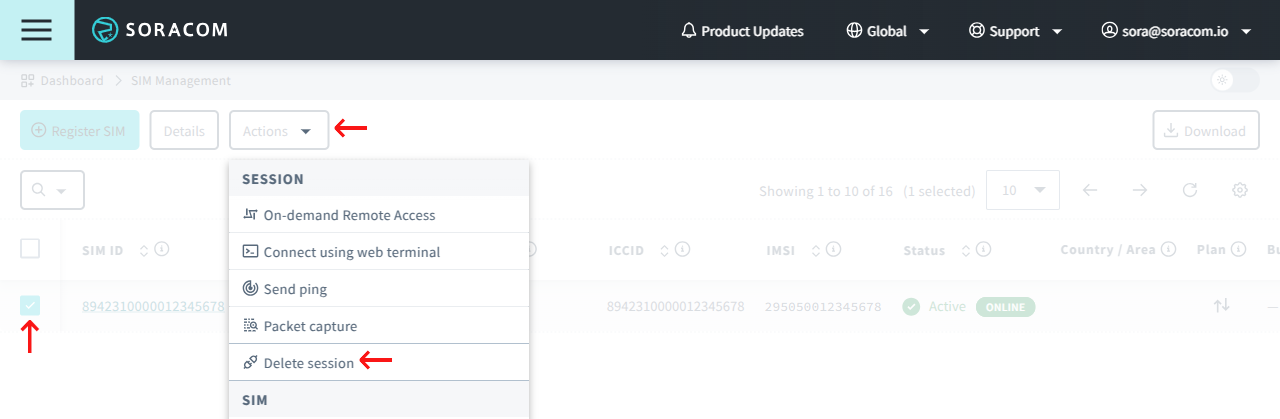
- A warning will appear asking you to confirm the action. Click Delete session to confirm.
Programmatic Usage
You can programmatically manage an IoT SIM's session status using the Soracom API, CLI, or IoT SIM Metadata Service. For subscriber status-related API operations such as activating, deactivating, or suspending a SIM, see Subscriber Status.
When using the API or CLI, you will need the SIM ID of the IoT SIM. Alternatively, you can use the IMSI for subscriber-based API operations.
Soracom API
To access the Soracom API, first use the auth API to obtain an API Key and Token. Refer to the API Usage Guide for instructions on how to use the API Key and Token in API requests.
To delete an ongoing session or list session history, use the following APIs on a per-SIM basis:
Alternatively, you can use the following APIs to perform the same actions on a per-subscriber basis:
When using the listSessionEvents and listSimSessionEvents APIs, only the session logs from the previous 32 days will be returned.
Soracom CLI
To use the Soracom CLI, you must first configure it to authenticate with your account information, authorization key, or SAM user credentials.
To delete an ongoing session or list session history on a per-SIM basis, use:
soracom sims delete-sessionsoracom sims session-events
Alternatively, you can use the following commands on a per-subscriber basis using an IMSI:
soracom subscribers delete-sessionsoracom subscribers list-session-events