Bounding Box Action
The Bounding Box Action applies one or more bounding boxes to an image specified by URL and outputs a new image with the bounding boxes applied. Bounding boxes can be defined as rectangles or polygons.
This action is typically used in combination with image acquisition or AI actions to define regions of interest within an image.
Configuration
In the Action Condition section, you can specify the conditions under which the action will be executed using the values (Message or Context) from the event source to the channel. For more details on the expressions you can input, refer to Use Expressions in Actions.
In this input field, you can enter expressions representing data related to the trigger that starts the Flux application (e.g., event.payload.temp) or data related to the channel where the action is added (e.g., payload.temp).
Configuring Bounding Box Action
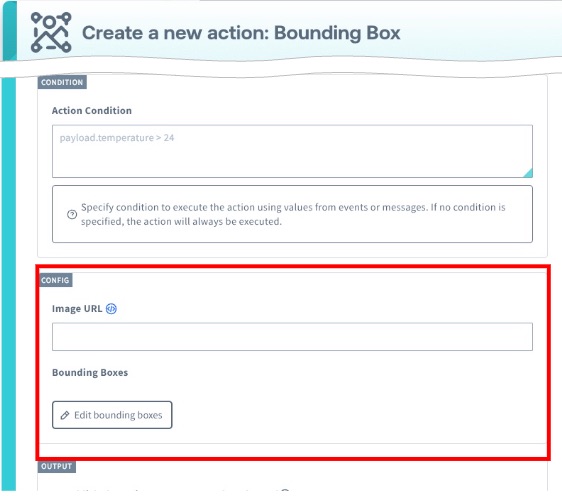
Configure how bounding boxes are applied to the image.
-
Image URL: Specify the URL of the image to which bounding boxes will be applied.
In this input field, you can enter expressions that reference data related to the trigger that starts the Flux application (for example,
${event.payload.imageUrl}) or data related to the channel where the action is added (for example,${payload.imageUrl}).For details on supported expressions, refer to Use Expressions in Actions.
For example, when using the Soracom Harvest Files event source, you can specify
${event.payload.presignedUrls.get}to apply bounding boxes to images uploaded to Soracom Harvest Files. -
Edit bounding boxes: Click Edit bounding boxes to define bounding boxes by displaying a locally saved image and drawing bounding boxes directly on the image using the mouse. You can draw rectangles or polygons on the image.
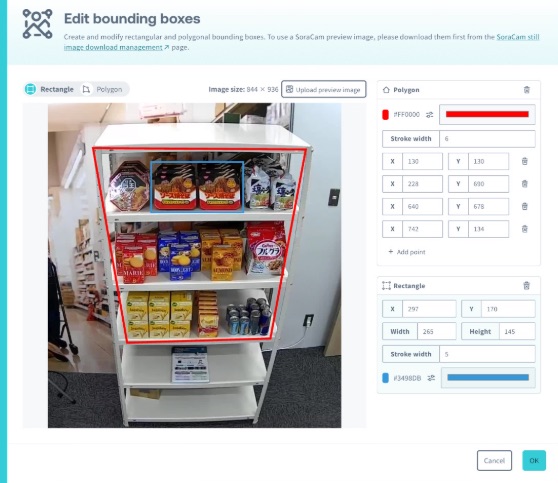
- Rectangle: Click and drag on the image to draw a rectangular bounding box. You can also drag existing rectangles to move them, or drag their corners and edges to resize them.
- Polygon: Click on the image to add vertices for a polygon. Click on the first vertex to close the polygon, or double-click to finish drawing.
-
Bounding Boxes: Displays the list of configured bounding boxes. You can configure multiple bounding boxes and edit each one individually.
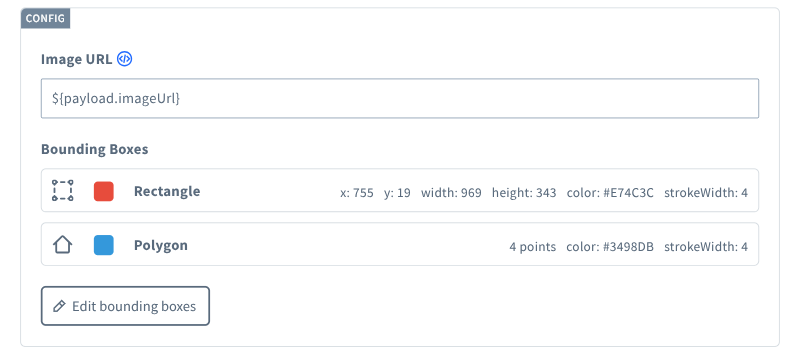
- Rectangle: Displays the X coordinate, Y coordinate, width, height, border color, and stroke width.
- Polygon: Displays the number of vertices (points), border color, and stroke width.
Output
Configure how the output of this action is handled. For details, refer to Enable Republishing of Action Output.
Output Data of the Action
The Bounding Box Action outputs metadata for the processed image, including a URL that can be used to download the image with bounding boxes applied.
Example
{
  "imageUrl": "https://flux-image-processor-action-output-jp.s3.ap-northeast-1.amazonaws.com/OP00335XXXXX/01KC09FXXXXX",
  "metadata": {
    "fileSize": 224274
  }
}