Establishing an MQTTS Connection with the MQTTS Test Server
Use Beam's MQTT entry point and Soracom's MQTTS test server to verify how Beam forwards MQTT publish and subscribe operations.
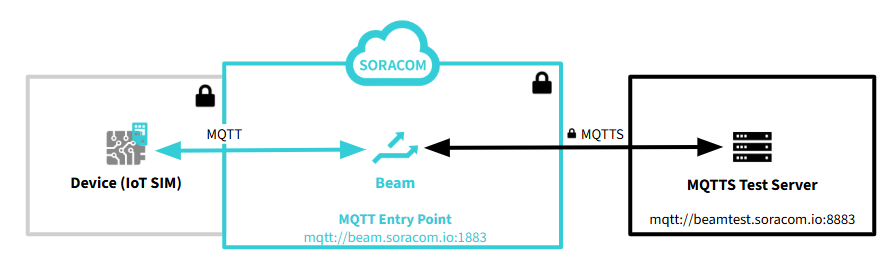
No special setup is required to use the MQTTS test server. In this tutorial, you will add an MQTT entry point configuration and perform MQTT publish and subscribe operations from your device.
The device connects to the MQTT entry point (beam.soracom.io:1883). The device does not need to know the MQTTS test server URL or credentials.
Configuring MQTT Entry Point
Add an MQTT entry point configuration to your SIM group and assign your IoT SIM to the group.
Beam settings are configured at the group level. For more information about groups, see Groups.
-
In the SIM group settings screen, choose a group, then select Soracom Beam.
For detailed instructions on how to open the SIM Group settings screen, see Group Settings.
-
Click + Add Configuration and select MQTT entry point.
The Soracom Beam - MQTT configuration screen appears.
-
Configure the following settings:
Item Value Configuration name Enter any name. Example: MQTT over TLSDestination > Type Select Standard.Destination > Protocol Select MQTTS.Destination > Host name Enter beamtest.soracom.io.Destination > Port number Enter 8883.Username Enter beamuser.Password Enter passwd.For more information about MQTT entry point settings, see MQTT Entry Point.
-
Click Save.
-
Assign your IoT SIM to the group.
Beam configuration is now complete.
Publishing Data to a Topic
In this example, your IoT device publishes a message through Beam to the MQTTS test server. An external client subscribes directly to the test server to receive the message.
Roles in this example:
- Publisher: IoT device with SIM → connects to Beam (
beam.soracom.io:1883) - Subscriber: External client → connects directly to MQTTS test server (
beamtest.soracom.io:8883) - Beam: Forwards published messages to the test server, handling TLS and authentication
Beam charges are incurred per request. A free tier is available. For more information, see Soracom Beam Pricing.
-
On any device with an MQTT client, subscribe to a topic using the following settings:
Item Value Host beamtest.soracom.io:8883Topic testUsername beamuserPassword passwdExample using
mosquitto_sub:mosquitto_sub -h beamtest.soracom.io -p 8883 -t test -u beamuser -P passwd -
From a device using an IoT SIM configured with the MQTT entry point, publish a message using the following settings:
Item Value Host beam.soracom.ioTopic testMessage Hello WorldExample using
mosquitto_pub:mosquitto_pub -h beam.soracom.io -p 1883 -t test -m "Hello World"The external client displays:
Hello World
The IoT device using Beam does not need to specify the MQTTS test server username and password. Beam handles the authentication.
Subscribing to a Topic
In this example, your IoT device subscribes through Beam to receive messages from the MQTTS test server. An external client publishes directly to the test server.
Roles in this example:
- Subscriber: IoT device with SIM → connects to Beam (
beam.soracom.io:1883) - Publisher: External client → connects directly to MQTTS test server (
beamtest.soracom.io:8883) - Beam: Maintains the subscription and delivers incoming messages, handling TLS and authentication
Beam charges are incurred per request. A free tier is available. For more information, see Soracom Beam Pricing.
-
From a device using an IoT SIM configured with the MQTT entry point, subscribe to a topic using the following settings:
Item Value Host beam.soracom.ioTopic testExample using
mosquitto_sub:mosquitto_sub -h beam.soracom.io -p 1883 -t test -
On any device with an MQTT client, publish a message using the following settings:
Item Value Host beamtest.soracom.io:8883Topic testUsername beamuserPassword passwdMessage Hello WorldExample using
mosquitto_pub:mosquitto_pub -h beamtest.soracom.io -p 8883 -t test -u beamuser -P passwd -m "Hello World"The IoT device displays:
Hello World
The IoT device using Beam does not need to specify the MQTTS test server username and password. Beam handles the authentication.
Disabling Beam Configuration
Beam charges are incurred per request. If you are not using Beam, disable the entry point configuration or remove the IoT SIM from the group.
- To stop forwarding requests via Beam, open your SIM group settings and disable or delete the MQTT entry point configuration.
- To remove an IoT SIM from a group, see Removing a Device from a Group.