User Tables
A user table lets you query your own data alongside the data Soracom already holds for your account. You upload a CSV file to Soracom Harvest Files, register it as a user table, and it becomes available in Soracom Query as an ordinary table that can be joined against, for example, your Soracom Air connectivity, billing, or collected Soracom Harvest data.
This is useful because Soracom identifies your devices by SIM ID, while your own records identify them by whatever is meaningful to your business. If you keep a spreadsheet that maps each SIM ID to a device name, a hardware model, and the site where the device was installed, registering it as a user table lets you write a query that reports data usage by installation site rather than by SIM ID.
A user table consists of two independent parts: the CSV file stored in Harvest Files, and the registration in Soracom Query that records its columns. Soracom Query keeps no copy of your data and reads the file each time you run a query. Replacing the file changes the data but not the columns; deleting the user table removes the registration but not the file.
User tables are an Early Access feature. An application is required, and the specification may change without notice. Refer to Availability.
Availability
User tables are not available on the Free plan. To use user tables, your account must be subscribed to the Business or Enterprise plan.
User tables are not enabled by default. Once you are on an eligible plan, contact Soracom Support to request Early Access to user tables for your account.
You do not have to be the Root user. A SAM user can create, update, and delete user tables, provided its permissions allow the Soracom Query user table operations and the Harvest Files operations that this screen relies on. The Soracom Query operations are Analysis:listUserTables, Analysis:previewUserTable, Analysis:registerUserTable, Analysis:updateUserTable, and Analysis:deleteUserTable. The Harvest Files operations are FileEntry:listFiles to browse for a file, FileEntry:getFileMetadata and FileEntry:putFile to upload one, and FileEntry:getFile, which a query uses to read the CSV file each time it runs.
Prerequisites
Uploading a CSV file to Harvest Files incurs Harvest Files charges. In addition, each query that references a user table re-downloads the file from Harvest Files using your own credentials, and Harvest Files charges for downloads. Refer to the Pricing & Fee Schedule for more information.
Each CSV file must meet the following conditions:
| Condition | Requirement |
|---|---|
| File Size | 50 MiB or less |
| Columns | 50 or fewer |
| Delimiter | Comma. Other delimiters are not supported. |
| Character Encoding | UTF-8 |
| Quoting | Values may optionally be enclosed in double quotes. |
| Content | The file must contain at least one row of data and must not be a binary file. |
Harvest Files itself accepts much larger files, and the file size is not checked while uploading. If you upload a CSV file larger than 50 MiB, the upload succeeds and then registration fails when Soracom Query tries to read the file. Reduce the file below 50 MiB and register it again.
Preparing Your CSV File
Soracom Query determines the columns of a user table when you register it, by reading the file. You can adjust the results before you complete registration, but once the user table is registered the columns are fixed.
Header Row
By default, Soracom Query treats the first row of the file as a header row and uses its values as the column names. You can turn this off during registration, in which case the columns are named COL_1, COL_2, and so on.
Column names are normalized: surrounding spaces are removed, the name is converted to uppercase, and any character other than A–Z, 0–9, or an underscore is replaced with an underscore. Runs of underscores are then collapsed into a single underscore, and any leading or trailing underscores are removed. A name that is empty after this becomes COLUMN, and a name that begins with a digit is prefixed with COL_. For example, a header of Device Name becomes the column DEVICE_NAME, and Site / Region becomes SITE_REGION rather than SITE___REGION.
If two columns produce the same name, Soracom Query appends a suffix to make them unique rather than reporting an error. For example, a second STATUS column becomes STATUS_2, and a third becomes STATUS_3. Check the column names shown during registration if your file may contain repeated headers.
Data Types
Soracom Query infers the data type of each column from the file, testing each type in turn and using the first one that fits every value in the column:
| Type | Accepted values |
|---|---|
INTEGER |
Whole numbers |
FLOAT |
Numbers with a decimal point |
BOOLEAN |
true, false, 0, or 1 |
DATE |
YYYY-MM-DD only |
TIMESTAMP |
Several common date and time formats |
VARCHAR |
Any other value |
Empty values are ignored when inferring a type, and are loaded as NULL. A column that is empty in every row becomes VARCHAR.
Type inference reads at most the first 100 rows of data. Rows beyond that point are not examined. If a column contains only whole numbers for the first 100 rows but contains text further down, it is typed as INTEGER. Registration succeeds, but a query fails when it tries to load the text value. If a column can hold mixed values, include a non-numeric example within the first 100 rows or set the column type to VARCHAR during registration.
You can override the inferred type during registration. The available types are VARCHAR, INTEGER, FLOAT, NUMBER, BOOLEAN, DATE, TIMESTAMP, and TIMESTAMP_NTZ.
A column of identifiers made up entirely of digits, such as SIM IDs, is inferred as INTEGER. Soracom Query holds identifiers like these as text in its own tables, and joining the two still works, because the text values are converted to numbers for the comparison. Setting such a column to VARCHAR yourself keeps both sides of the join the same type, which is the safer choice: the conversion requires every value in the Soracom column to be numeric, and it treats identifiers that differ only by a leading zero as equal.
Registering a User Table
Registration is a two-step process: you choose the CSV file, then review the columns that Soracom Query has derived from it before confirming.
-
Sign in to the User Console and select the appropriate coverage type.
-
From the Menu, expand Soracom Query and select Soracom Query.
-
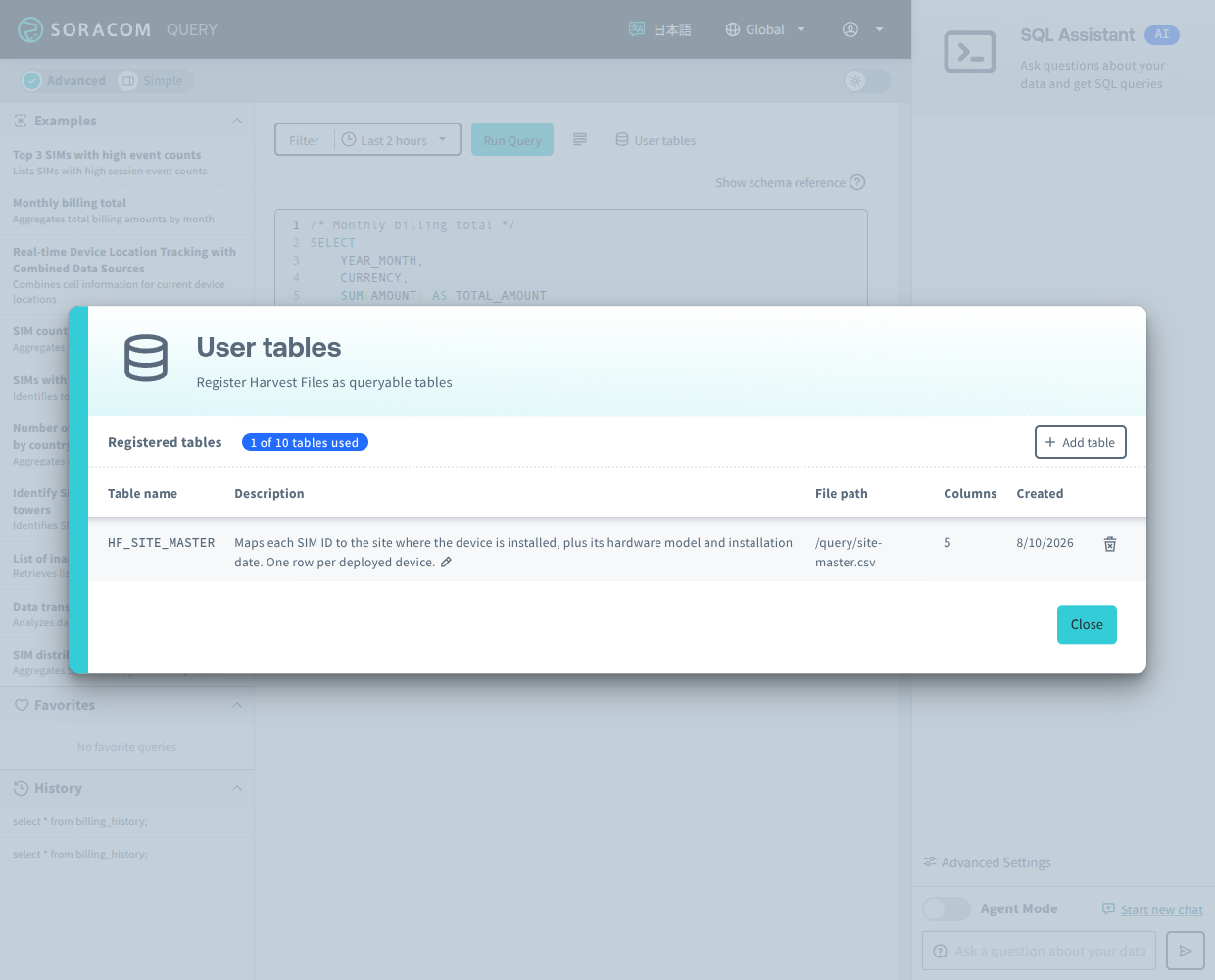
Click User tables to open the user table list, then click Add table.
-
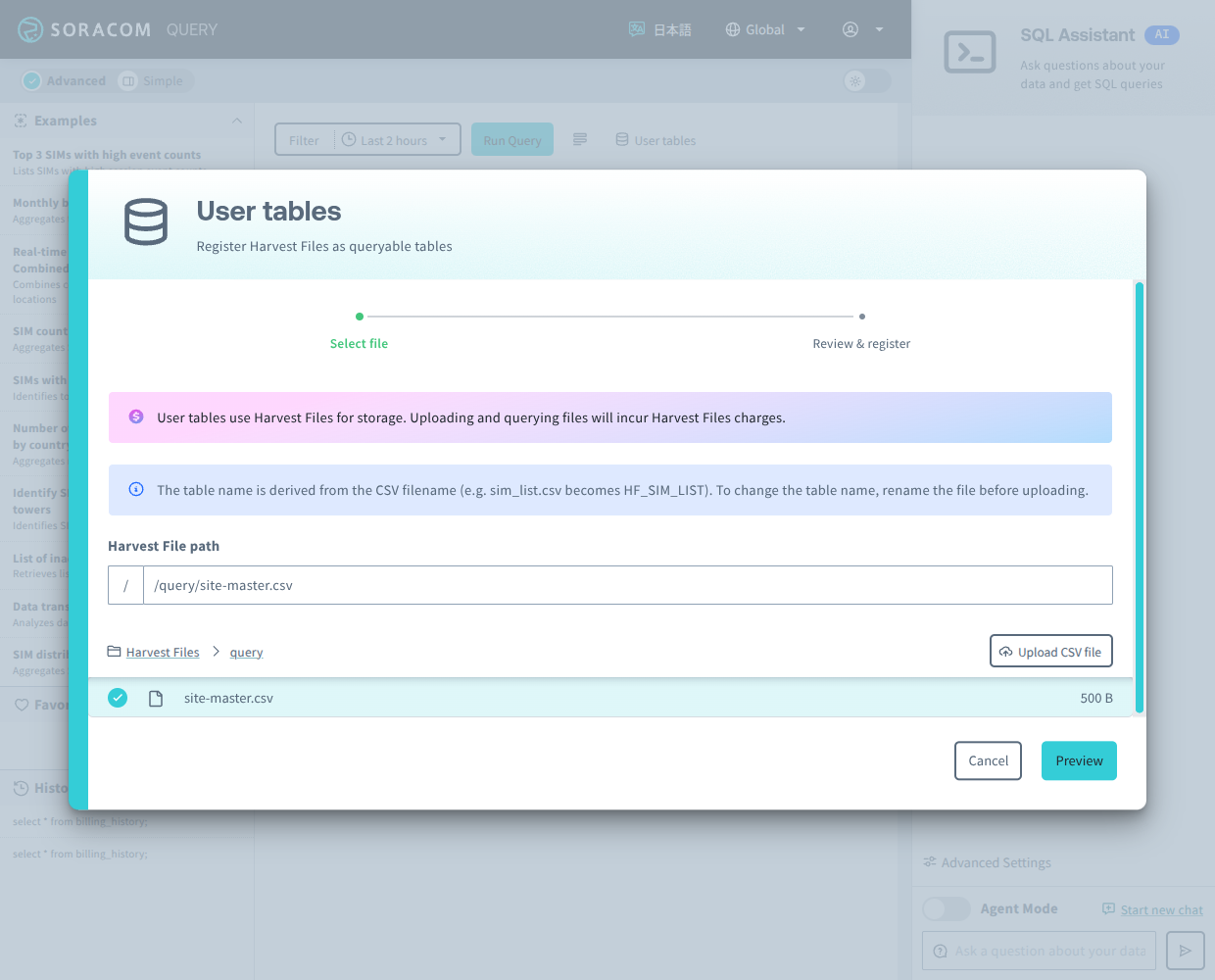
Select an existing CSV file in Harvest Files, or upload a new one by choosing the destination directory and selecting your file.
If a file with the same name already exists at that location, you will be prompted to confirm before it is overwritten.
-
Click Preview.
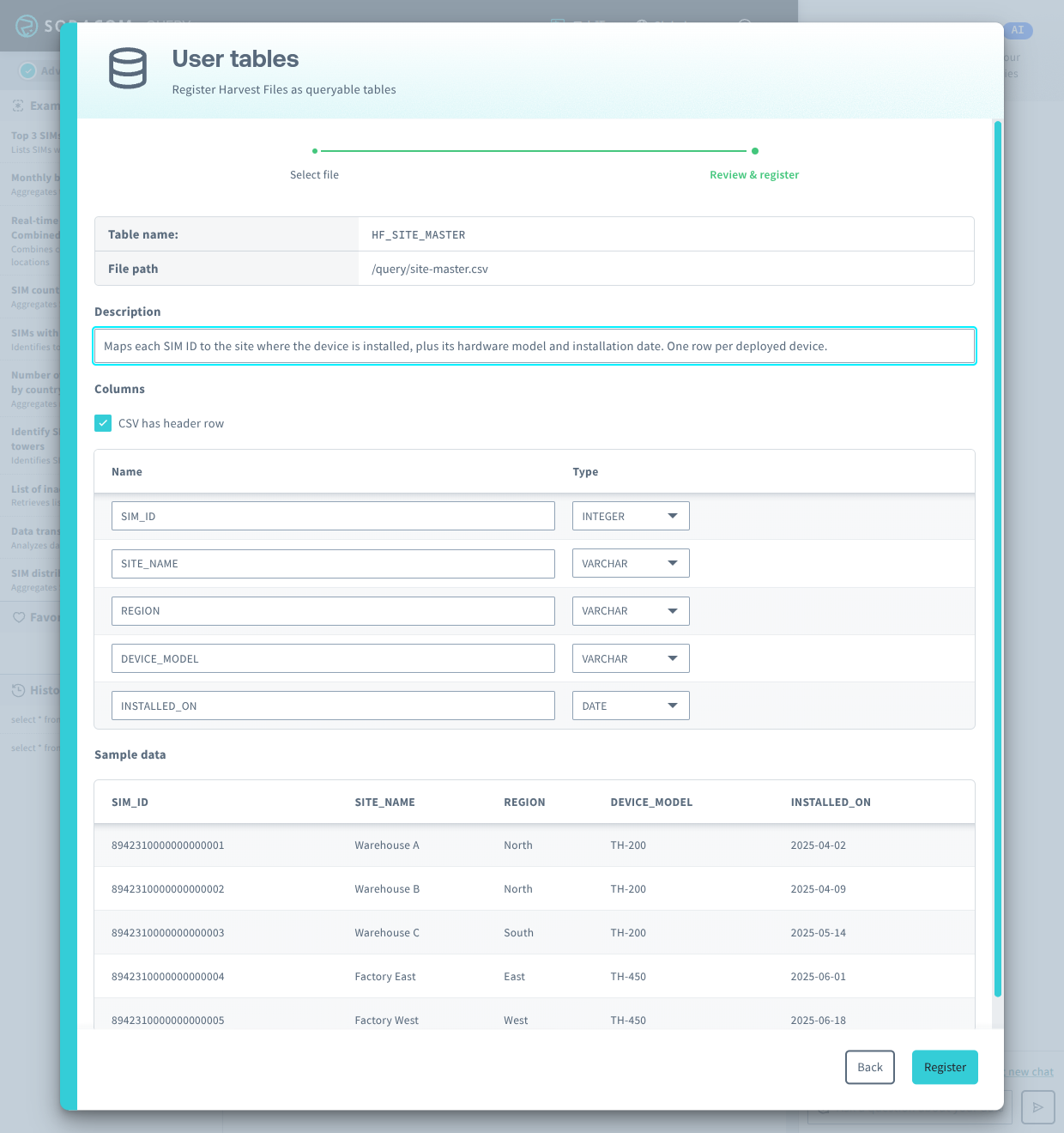
Soracom Query will read the file and display the table name derived from the filename, the columns it has identified, and up to five sample rows of data.
-
Review the result and adjust it if necessary. You can:
- Rename any column.
- Change the data type of any column.
- Clear the CSV has header row checkbox if the first row of your file is data rather than column names. The preview will be regenerated immediately when you change this.
- Add a description for the user table. The description is passed to the SQL Assistant and shapes the quality of the SQL it generates. Refer to Asking the SQL Assistant About a User Table below.
The table name is derived from the filename and cannot be changed here. To use a different table name, rename the CSV file in Harvest Files and register it again.
-
Click Register.
The user table will be created and appear in the list, ready to query.
Querying a User Table
The name of a user table is derived from the filename of the CSV file, not from its full path. The filename is stripped of its extension and converted to uppercase, any character other than A–Z, 0–9, or an underscore is replaced with an underscore, runs of underscores are collapsed into a single underscore, any leading or trailing underscores are removed, and the result is prefixed with HF_.
For example, a CSV file named site-master.csv becomes a table named HF_SITE_MASTER, wherever in Harvest Files it is stored.
Refer to the table by that name directly in your SQL. User tables are not qualified by a database or schema name:
SELECT * FROM HF_SITE_MASTER;Table and column names are always uppercase, but you do not need to type them that way. Unquoted names in SQL are not case-sensitive, so hf_site_master also works.
Because the table name comes from the filename alone, two CSV files with the same filename produce the same table name even when they are in different directories. sites/devices.csv and spares/devices.csv both derive HF_DEVICES, and registering the second one fails. Give each user table CSV file a distinct filename.
The HF_ prefix is always applied.
Example
For example, suppose you maintain a CSV file named site-master.csv that lists the SIM ID of each device along with the site it is installed at:
| sim_id | site_name | region | device_model | installed_on |
|---|---|---|---|---|
| 8942310000000000001 | Warehouse A | North | TH-200 | 2025-04-02 |
| 8942310000000000002 | Warehouse B | North | TH-200 | 2025-04-09 |
Registered as a user table, it becomes HF_SITE_MASTER with the columns SIM_ID, SITE_NAME, REGION, DEVICE_MODEL, and INSTALLED_ON.
Soracom Query provides daily traffic totals per SIM in the SIM_STATS_DAILY_SUMMARY view, which also has a SIM_ID column. Joining the two lets you total data usage by installation site:
SELECT
    site.SITE_NAME,
    SUM(stats.UPLINK_BYTES + stats.DOWNLINK_BYTES) AS TOTAL_BYTES
FROM SIM_STATS_DAILY_SUMMARY AS stats
    JOIN HF_SITE_MASTER AS site
        ON stats.SIM_ID = site.SIM_ID
WHERE stats.DATE >= '20260701'
GROUP BY site.SITE_NAME
ORDER BY TOTAL_BYTES DESC;
SIM_STATS_DAILY_SUMMARY records usage separately for each speed class, so a SIM appears on more than one row per day. The SUM above totals them. Its DATE column is text in YYYYMMDD format rather than a date type, so it is compared against a string.
This example uses the Global coverage schema. Refer to the Soracom Query schema reference for the tables and views available for your coverage type.
Asking the SQL Assistant About a User Table
You do not have to write the SQL yourself. Once a user table is registered, the SQL Assistant knows about it and can generate SQL against it from a natural-language request, in the same way it does for the built-in Soracom tables. You can ask for total data usage by site without knowing that the answer requires a join.
All of the user tables registered to your account are made known to the SQL Assistant, not only the ones you mention. For each user table it receives the table name, the description you entered, and the name and data type of every column. It does not see the contents of your CSV file unless a query it generates is executed.
Beyond the column names and types, the description is the main thing that tells it what the table actually means. A short description like Site master provides little information. A description like Maps each SIM ID to the retail store where the device is installed, plus its hardware model and installation date. One row per deployed device. tells the assistant what the table is keyed on and what a row represents, which is what it needs in order to join the table correctly. If you leave the description empty, all it has in place of one is the name of the file the table came from.
The description can be edited after the user table is registered, so you can improve it at any time without registering the table again.
Data Handling
The contents of your user tables are treated as data, never as instructions. Table names, column definitions, and descriptions are kept separate from the built-in Soracom Query schema, and the SQL Assistant is explicitly instructed not to act on any directives that may appear in them.
Agent Mode and Harvest Files Charges
When Agent Mode is enabled, the SQL Assistant does not just suggest SQL. It runs what it generates, and may adjust it and run it again, so a single request may run several queries. Refer to Agent Mode for how the SQL Assistant runs queries and how they count against your plan.
Each query the SQL Assistant runs re-downloads every user table it refers to from Harvest Files, so a single request in Agent Mode can download the same CSV file several times, and each download incurs a Harvest Files charge. Whether a request touches a user table at all depends on what the assistant decides it needs.
Updating the Data in a User Table
When you overwrite the CSV file, queries immediately return the new data. The columns, however, are fixed at registration.
Soracom Query reads your CSV file from Harvest Files every time you run a query that uses the user table. If you overwrite the file with an updated version, the next query returns the new data. There is no need to register the table again, and there is no refresh step or import delay.
The columns, however, come from the registration, not from the file. If you overwrite the file with one that has different columns, the user table keeps the columns it was registered with. The change is not picked up, and depending on how the new file differs, queries may fail.
To update the data in a user table, overwrite the CSV file in Harvest Files. To change its columns, delete the user table and register it again.
After a user table is registered, only its description can be edited. Changing the columns, the column types, or whether the file has a header row all require registering the table again. Registering the same file a second time without deleting the existing user table fails, because the derived table name is already in use.
There is also no way to append to a user table. To add rows, upload a CSV file that contains both the existing and the new rows, overwriting the original.
Because the size of the file is only checked when it is read, replacing a registered CSV file with one larger than 50 MiB breaks the user table without any warning at the time. The user table continues to appear in the list, and the failure only surfaces the next time someone runs a query that uses it. Keep the replacement file under 50 MiB.
If the CSV file is deleted from Harvest Files after the user table is registered, the user table remains in the list but queries that use it fail. Upload the file again at the same path, or delete the user table.
Deleting a User Table
Deleting a user table removes its registration from Soracom Query. It does not delete the CSV file from Harvest Files.
-
Sign in to the User Console and select the appropriate coverage type.
-
From the Menu, expand Soracom Query and select Soracom Query.
-
Click User tables to open the user table list, then click the delete icon in the row of the user table you want to remove.
-
Click Delete user table to confirm.
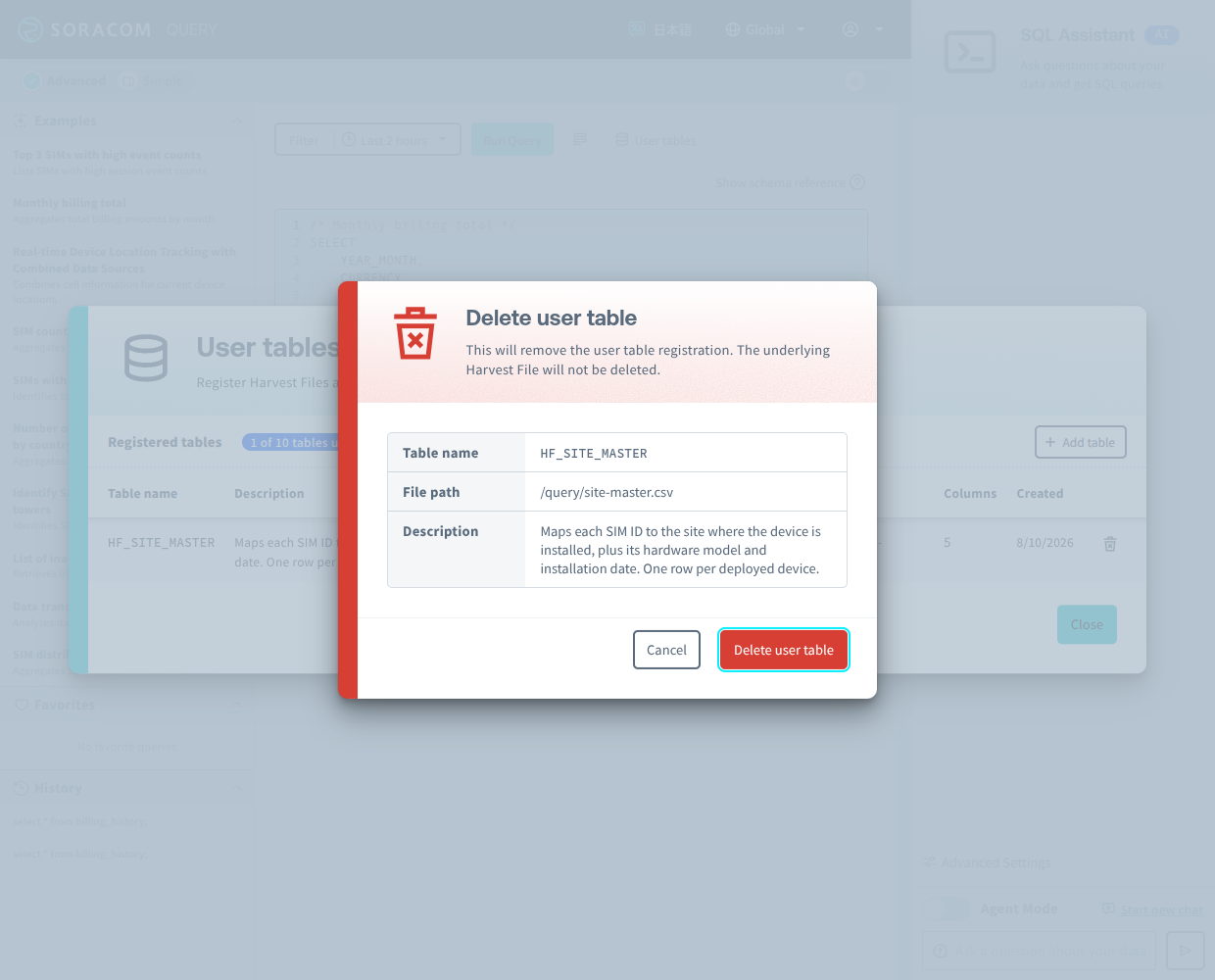
After the user table is deleted, queries can no longer refer to it, and it is no longer described to the SQL Assistant.
Deleting a user table does not remove its CSV file. The file remains in Harvest Files. If you no longer need the data, delete the file from Harvest Files as well.
Because the file and the registration are independent, deleting a user table is also the way to change its registered columns. Once the registration is gone, the derived table name is free, and you can register the same file again with different columns, different types, or a different header setting. Refer to Updating the Data in a User Table above.
Limitations
- Each CSV file is limited to a maximum size of 50 MiB.
- Each user table is limited to 50 columns.
- The combined size of the user table CSV files read by a single query is limited to 1.5 GiB.
- Values must be comma-separated, and the file must be UTF-8 encoded.
- Data types are inferred from at most the first 100 rows of data.
- Two CSV files with the same filename cannot both be registered, even when they are stored in different directories.
- After registration, only the description of a user table can be changed.
- Data cannot be appended to an existing user table.
- Soracom Query Studio limits user table descriptions to 200 characters.
Troubleshooting
| Message or behavior | Cause and resolution |
|---|---|
failed to infer column types from CSV |
The file could not be read as CSV. It may be a binary file, use a delimiter other than a comma, or contain no data rows. |
failed to download harvest file when previewing or registering |
This usually means the CSV file is larger than the 50 MiB limit, but the same message is shown for any failure to read the file. Verify that the path is correct, the file still exists in Harvest Files, and the SAM user has permission to read it. |
file exceeds maximum size of 52428800 bytes when running a query |
The CSV file was under 50 MiB when the user table was registered but has since been replaced with a larger one. 52,428,800 bytes is 50 MiB. |
too many columns |
The file has more than 50 columns. |
duplicate column name |
Two columns were given the same name during registration. |
invalid column name |
A column name contains characters that are not allowed or does not begin with a letter. |
table already exists or could not be created |
A user table with the same derived name is already registered. Delete the existing user table first, or rename the CSV file. |
maximum number of user tables for your plan reached |
Your account already holds as many user tables as your plan allows. Delete a user table you no longer need before registering another. |
you have <N> user tables registered but your current plan allows <M> |
Your account holds more user tables than your plan allows, and queries are refused until you delete enough of them to be within the limit. |
| A query fails but the user table is still listed | The CSV file has been deleted from Harvest Files. Upload it again at the same path, or delete the user table. |