To get started, your account must be enabled for Connectivity Hypervisor. To request access, contact us.
Connectivity Hypervisor
Connectivity Hypervisor is a service for managing profiles on Soracom Air for Cellular IoT SIMs. It lets you store multiple subscriptions on a single IoT SIM as profiles and switch between them as needed. Profile management and delivery comply with SGP.32, one of the GSMA Remote SIM Provisioning (RSP) specifications for IoT devices.
Subscriptions and Profiles
A subscription is the service plan and configuration that defines how a device connects to the cellular network (for example, plan01s or planX1). A subscription determines which carriers and regions your device can use, and at what rates.
A profile is a package that carries a subscription onto the IoT SIM so that the device can connect. It also contains the credentials and settings required for that connection, such as the IMSI. The IMSI is the subscriber identifier issued when you sign up for a subscription, and it is distinct from the SIM ID that identifies the IoT SIM itself. Each profile contains one or more subscriptions.
Use Cases
Connectivity Hypervisor provides add profile (download), activate profile, and terminate profile operations for supported IoT SIMs, which enable use cases such as the following.
Switching Profiles by Region or Destination
You can switch to the profile you need on the IoT SIM according to where the device is used or shipped. This lets you use the most suitable subscription for each region or destination without producing different device variants.
Adding a Profile Only When Needed
Some IoT devices do not need connectivity at the time they are shipped or first deployed. For example, consumer devices may need to minimize communication costs while in inventory. With Connectivity Hypervisor, you can add and start using a profile only when it becomes necessary.
Available Profiles
The subscriptions and profile codes available with Connectivity Hypervisor are as follows. A profile code identifies the profile to order when you purchase or add it to an IoT SIM.
| Subscription | Profile Code | Notes |
|---|---|---|
| plan01s | SGEPR33 | Default profile for SGR31 SIMs |
| planX1 | SGEPR31 | |
| planX2 | SGEPR37 | |
| planX3 | SGEPR38 | Available only to customers in the European region |
| plan-US | SGEPR39 | Default profile for SUR31 SIMs; available only to customers in the United States |
A Connectivity Hypervisor-capable IoT SIM comes with a default profile pre-installed, which cannot be deleted. For SGR31, the SIM model available for purchase in all regions, the default profile is SGEPR33, which contains plan01s.
How It Works
A supported IoT SIM runs a software agent called an IoT Profile Assistant (IPA), which communicates with the Soracom platform periodically to manage profile state. When you request a profile operation — adding (downloading), activating, or terminating a profile — the Soracom platform prepares instructions for the IPA to read, and the IPA carries out the operation and reports the result back to the platform. Because this control-plane IPA communication is polling-based and asynchronous, a request is not reflected instantly.
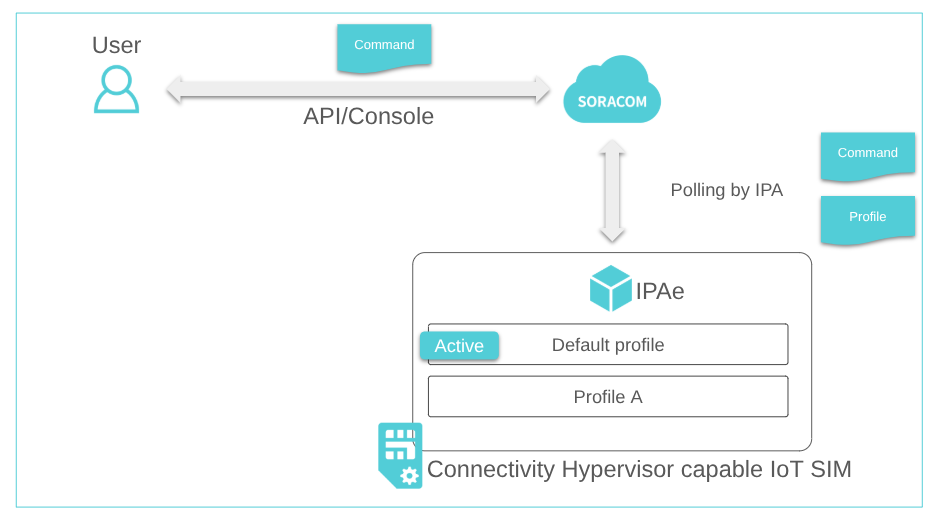
The IPA on a Connectivity Hypervisor-capable IoT SIM is an IPAe — an eUICC-resident ("SIM-embedded") IPA.
Because the IPAe communicates with the Soracom platform once a day, each communication incurs a few kilobytes of data traffic on the subscription of the currently active profile.
Pricing
Connectivity Hypervisor incurs initial costs for supported IoT SIMs and any additional profiles. Each subscription contained in a profile is also subject to standard Soracom Air charges. Connectivity Hypervisor is available for Global coverage only, so all fees are billed in US dollars (USD).
Initial Costs
| Item | Fee |
|---|---|
| Connectivity Hypervisor-capable IoT SIM — SGR31 (all regions, default profile SGEPR33) | $6.00 per IoT SIM |
| Connectivity Hypervisor-capable IoT SIM — SUR31 (United States, default profile SGEPR39) | $6.00 per IoT SIM |
| Additional profile | $3.00 per profile |
The default profile is included with the IoT SIM. A per-profile cost applies only when you purchase an additional profile.
Subscription Charges
Each subscription contained in a profile incurs the standard Soracom Air charges for its plan, such as basic, data communication, renewal, and reactivation fees. For the full breakdown, see the Pricing & Fee Schedule.
Difference from Subscription Containers
Both Subscription Containers and Connectivity Hypervisor let you use multiple subscriptions on a single IoT SIM. The main difference is whether the subscription used for communication is chosen automatically or selected by you.
Use Subscription Containers when you want the subscription to switch automatically according to the country or region where the device is located. Use Connectivity Hypervisor when you want to switch the subscription yourself, by activating a profile according to the destination or use case.
A Connectivity Hypervisor profile and a Subscription Container additional subscription are not the same thing. The main differences are as follows:
| Aspect | Subscription Containers | Connectivity Hypervisor |
|---|---|---|
| Unit of management | Additional subscription | Profile containing a subscription |
| How the subscription used for communication is decided | Automatically decided from the added subscriptions, based on the country or region where the device is located. | You select which profile to use from the added profiles. The device communicates using the subscription contained in the selected profile. |
| Unit of termination | An additional subscription cannot be terminated on its own. | You can terminate an added subscription without terminating the IoT SIM by terminating the profile that contains it. The default profile cannot be terminated. |
When using Connectivity Hypervisor, Subscription Containers can only be used with the plan01s and plan-US subscriptions that are pre-installed as the default profile. They cannot be used with a plan01s or plan-US profile that you download and add, or with a profile that contains any other subscription.
Requirements
- Your device's cellular module must support SIM Toolkit (STK) commands, which the IPA relies on to operate. See Verified Cellular Modules for modules that have been confirmed to work.
- Connectivity Hypervisor uses the IPAe (SIM-embedded IPA). If you are interested in using IPAd (device-resident IPA), contact us.
Verified Cellular Modules
- Quectel EG25-G
- Quectel EC25-J
- Quectel BG95-M5
- Quectel BG77
- Quectel BG96
- Telit Cinterion EXS82-W
- Telit Cinterion ELS61-E
- Telit Cinterion PLS83-W
- Telit LE901C1-EUX
- Sierra Wireless MC7455
- SIMCom SIM7080
Managing Connectivity Hypervisor-capable IoT SIMs
This section explains how to list your Connectivity Hypervisor-capable IoT SIMs and how to add, activate, and terminate profiles, view event history, and set tags.
Listing Connectivity Hypervisor-capable IoT SIMs
You can list your Connectivity Hypervisor-capable IoT SIMs. Make sure you are signed in with an operator that has Connectivity Hypervisor enabled.
-
Sign in to the User Console. From the Menu, open the Connectivity Hypervisor screen.
A list of your Connectivity Hypervisor-capable IoT SIMs is displayed.
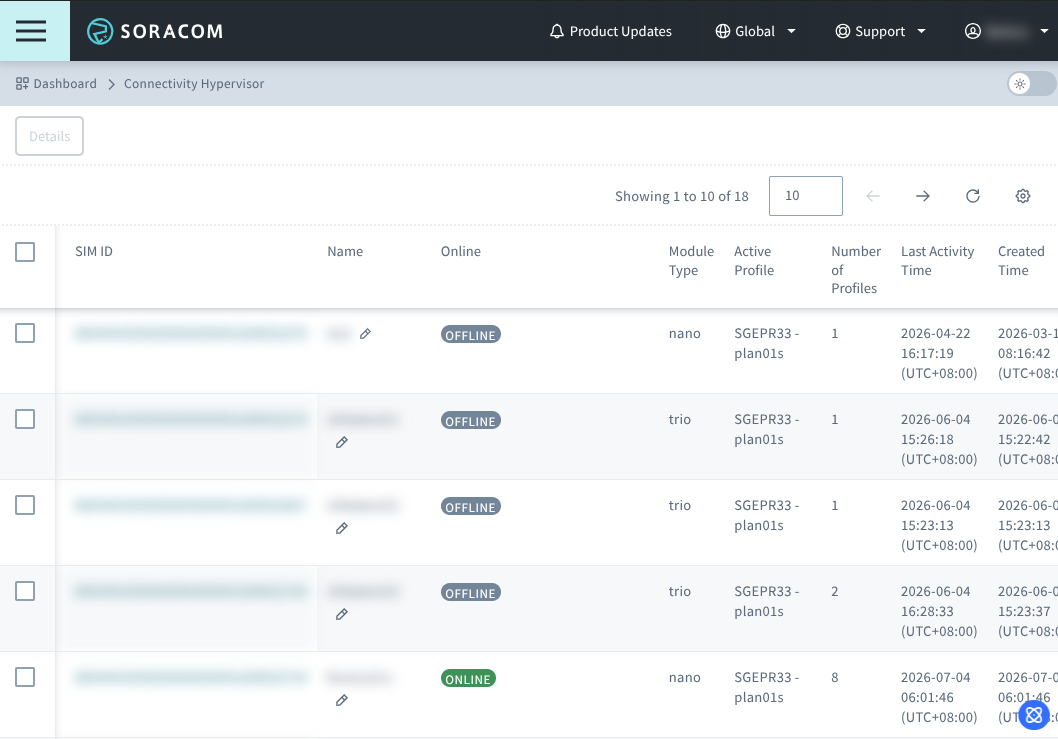
Viewing the SIM Hypervisor screen
To view detailed information about a Connectivity Hypervisor-capable IoT SIM, open the SIM Hypervisor screen. On the Connectivity Hypervisor screen, select the IoT SIM whose details you want to view, and click Details. The SIM Hypervisor screen for the selected IoT SIM is displayed.
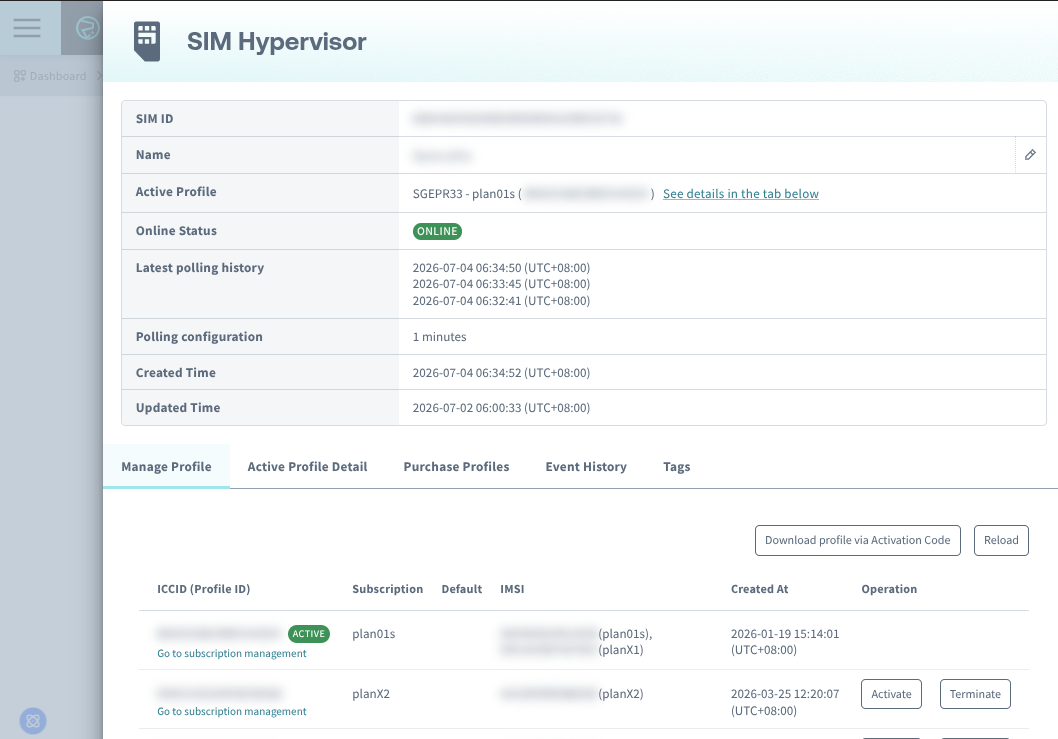
On the SIM Hypervisor screen, you can view the following items:
| Item | Description |
|---|---|
| Latest polling history | Shows the most recent polling events from the IPAe to the Soracom platform. Use this to check the state of the Connectivity Hypervisor-capable IoT SIM. |
| Polling configuration | Shows the polling interval from the IPAe to the Soracom platform. By default, polling occurs once every 24 hours. Shortening the interval lets you see profile state closer to real time, but each poll generates control communication between the IPAe and Soracom, which incurs data communication fees. |
For details about the IPAe, see How It Works.
The rest of this section describes what you can view and do on each tab of the SIM Hypervisor screen.
Adding a profile
You can add a profile to a Connectivity Hypervisor-capable IoT SIM by purchasing it.
Purchasing a profile incurs fees. Refer to the Pricing & Fee Schedule for more information.
-
On the SIM Hypervisor screen, click the Purchase Profiles tab.
-
Click Purchase for the profile you want to add.
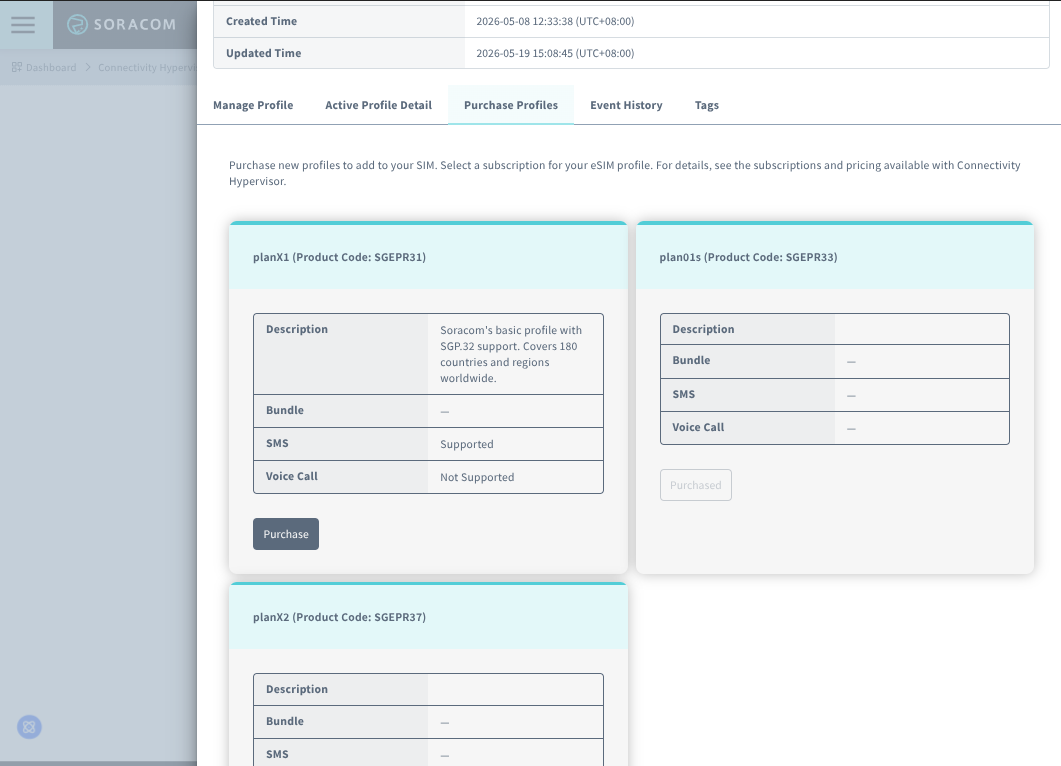
-
Review the purchase information and special terms, select the I have read and agree to the above terms. checkbox, and click Purchase.
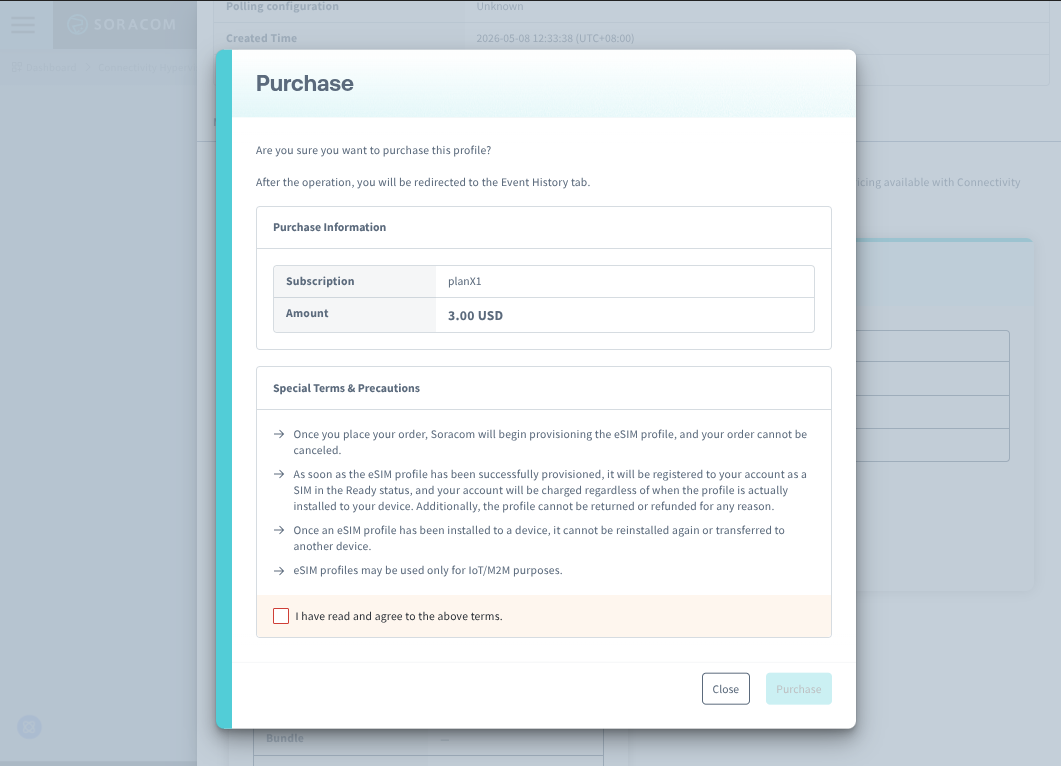
After the purchase, the Event History tab opens and the profile addition begins.
It can take from several minutes to several days for a purchased profile to be downloaded to the IoT SIM. You can check the progress on the Event History tab of the SIM Hypervisor screen. For details, see Viewing event history.
- When the profile addition is complete, open the Manage Profile tab on the SIM Hypervisor screen, find the added profile, and click Activate for it.
Activating a profile can likewise take from several minutes to several days to be reflected on the IoT SIM. You can check the progress on the Event History tab of the SIM Hypervisor screen. For details, see Viewing event history.
Adding (downloading) and activating a profile require the device to be able to communicate. These operations are reflected on the IoT SIM when the IPAe next communicates (polls) with the Soracom platform. To have an operation reflected, make sure the device holding the IoT SIM is powered on and able to perform data communication. While the device cannot communicate, the operation stays in the Requested state and is not reflected. For more about IPAe polling, see How It Works.
Manually downloading a profile
When you add a profile to a Connectivity Hypervisor-capable IoT SIM, its download begins. The download normally happens automatically, but if it fails or is canceled, you can request it manually: on the Manage Profile tab of the SIM Hypervisor screen, click Download for the target profile. The Download button appears only when the profile has been added and its download status is failed or canceled. A profile that has already been downloaded cannot be downloaded again, because the activation code used for the download is issued only once per profile and expires once the profile has been downloaded.
Activating and terminating profiles
You can view the list of profiles already added to a Connectivity Hypervisor-capable IoT SIM on the Manage Profile tab of the SIM Hypervisor screen. To switch the profile used for communication, activate the profile you want to use. When you activate a profile, the previously active profile is automatically deactivated, and the device communicates using the subscription contained in the newly activated profile.
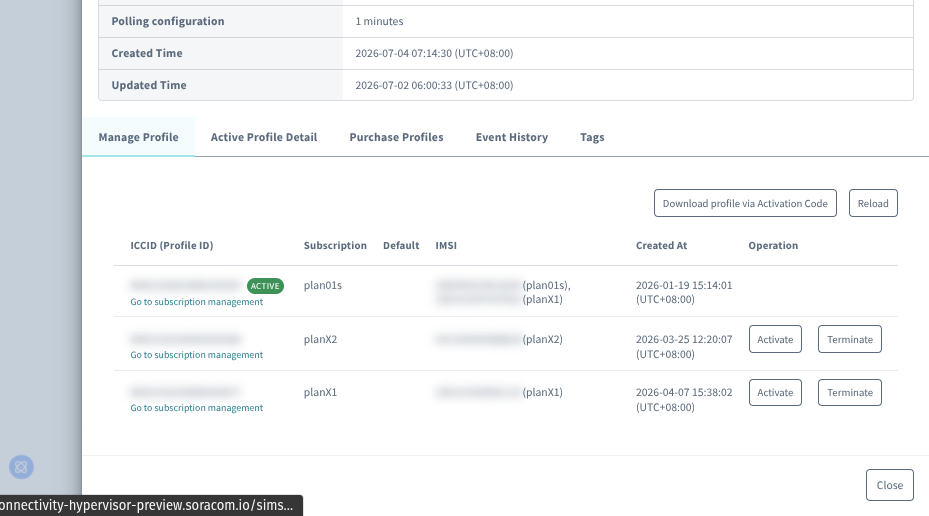
The available operations are as follows:
- Activate: Activates a profile already added to the IoT SIM. The activated profile becomes the profile used for communication.
- Terminate: Terminates a profile already added to the IoT SIM and terminates the subscriptions it contains.
- The default profile cannot be terminated.
- The currently active profile cannot be terminated. Activate another profile first, and then terminate it.
- You can add a new profile containing the same subscription again later.
Using the Connectivity Hypervisor screen together with the SIM Management screen
You add, activate, and terminate profiles on the SIM Hypervisor screen. Each added profile also appears as an individual IoT SIM on the SIM Management screen, where you manage SIM-level settings such as speed class, groups, tags, and session information. Click Go to subscription management for a profile on the Manage Profile tab to move to the SIM Management screen for the corresponding line.
To terminate an added profile (and the subscription it contains), use the Terminate button on the Manage Profile tab of the Connectivity Hypervisor screen, not the SIM Management screen. Also, the default profile cannot be terminated.
If you terminate the subscription of a profile added with Connectivity Hypervisor from the SIM Management screen, the device can no longer communicate using that subscription. To terminate a profile, always operate from the Manage Profile tab of the Connectivity Hypervisor screen. A guard against accidental termination from the SIM Management screen is planned for a future release.
Activating or deactivating a profile is not linked to the status of the subscription it contains (such as active or inactive). For example, deactivating a profile does not automatically move its subscription to inactive. Subscription status is managed separately on the SIM Management screen. When you terminate a profile, however, the subscriptions it contains are also terminated.
Viewing the active profile
You can view the ICCID, subscription, and line status of the currently active profile on the Active Profile Detail tab of the SIM Hypervisor screen.
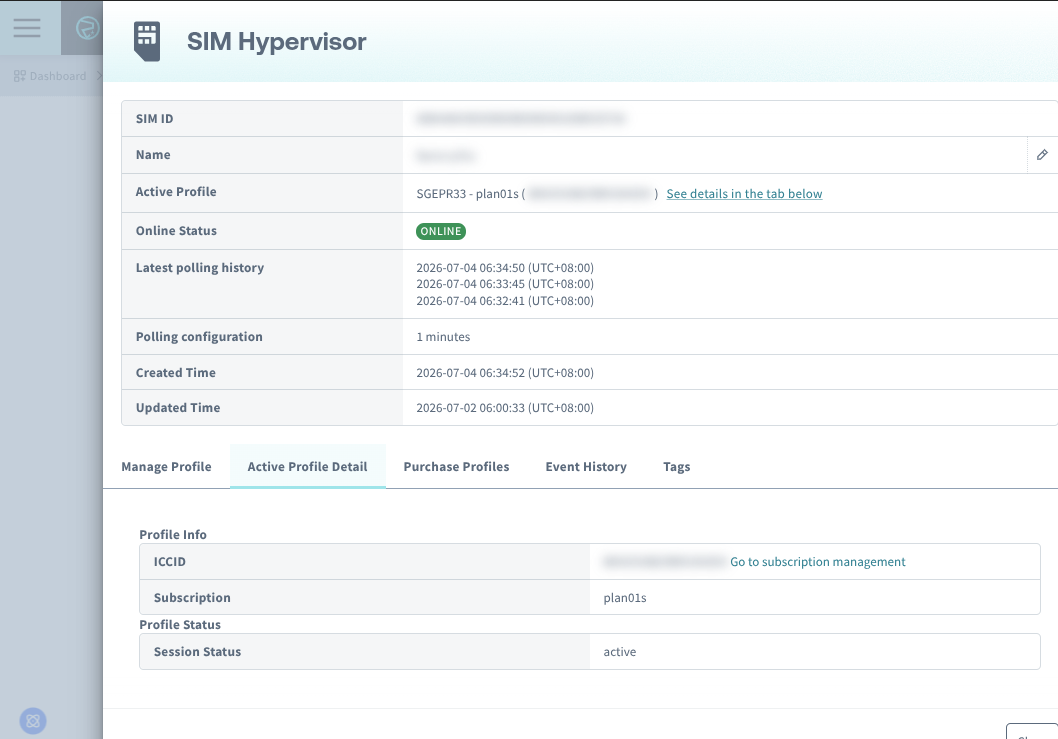
Viewing event history
You can view the history of profile-related events and operations for a Connectivity Hypervisor-capable IoT SIM on the Event History tab of the SIM Hypervisor screen.
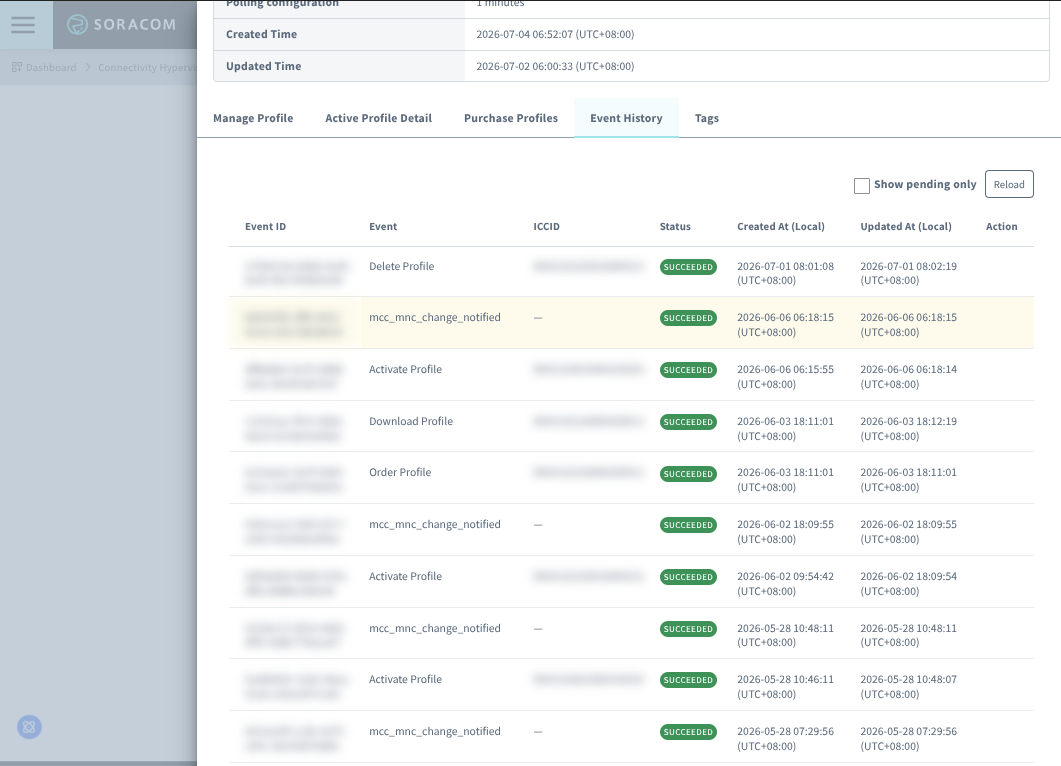
The following event types are available:
| Event | Description |
|---|---|
| Order Profile | A profile was purchased for the IoT SIM. |
| Download Profile | A profile was downloaded to the IoT SIM. |
| Activate Profile | A profile already added to the IoT SIM was activated. |
| Terminate Profile | A profile already added to the IoT SIM was terminated. |
The following statuses are available:
| Status | Description |
|---|---|
| Succeeded | The event completed successfully. |
| Failed | The event did not complete successfully. |
| Requested | Many operations are performed asynchronously. The request has been submitted to the Soracom platform and is waiting to be processed. |
Setting tags
You can add supplementary information to a Connectivity Hypervisor-capable IoT SIM using tags. Tags make the IoT SIM easier to manage and search.
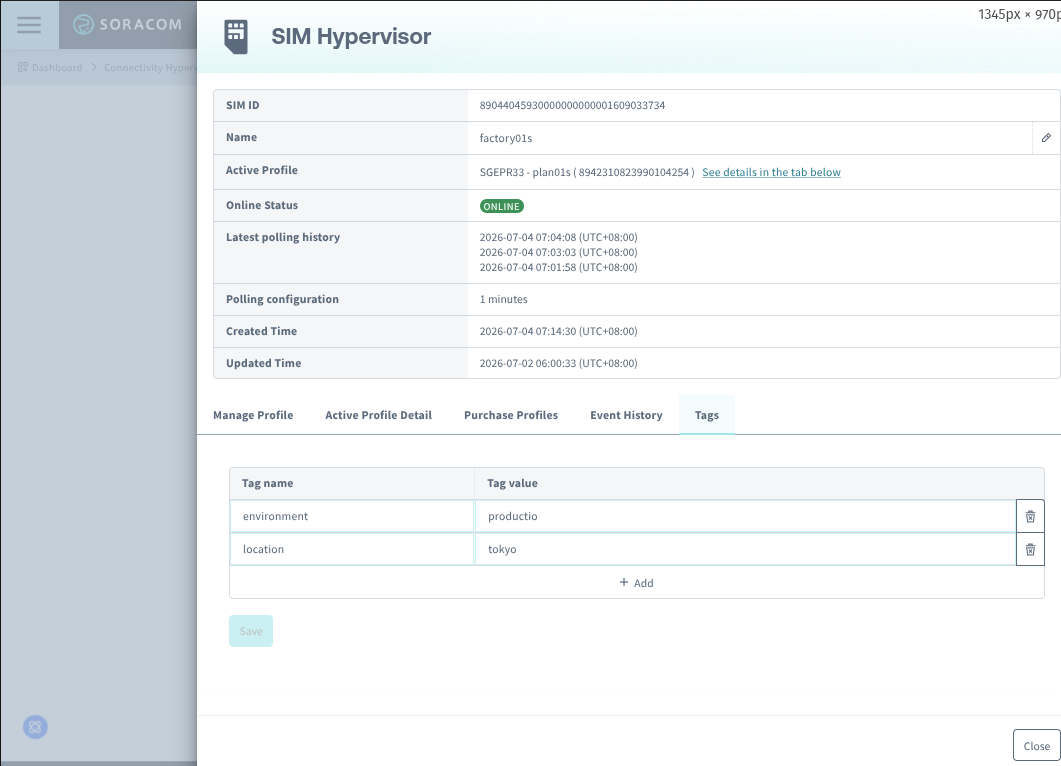
-
On the SIM Hypervisor screen, click the Tags tab.
-
Click + Add.
- Enter a Name and Value, and click Save.
To edit a tag, change its Name or Value, and click Save.
To delete a tag, click the delete icon for that tag.
Programmatic Usage
In addition to using the User Console, you can manage Connectivity Hypervisor profiles programmatically with the Soracom API and Soracom CLI. Connectivity Hypervisor is available for Global coverage only, so use the Global endpoint (or the g coverage type).
Soracom API
To access the Soracom API, first use the auth API to obtain an API Key and Token. Refer to the API Usage Guide for instructions on how to use the API Key and Token in API requests.
The following API operations are available for managing Connectivity Hypervisor-capable IoT SIMs (the Euicc category). Because Connectivity Hypervisor is Global coverage only, call the Global endpoint (https://g.api.soracom.io):
- List capable IoT SIMs: listEuiccs
- Get details of an IoT SIM: getEuicc
- Get status (polling history and online state): getEuiccStatus
- List available profile types: listEuiccProfileTypes
- Order a profile: orderEuiccProfile
- Request a profile download: requestEuiccProfileDownload
- Download a profile via activation code: downloadEuiccProfileViaActivationCode
- Request a profile activation: requestEuiccProfileActivation
- Request a profile deletion: requestEuiccProfileDeletion
- Get a profile: getEuiccProfile
- List profile operation history: listEuiccProfileOperationHistory
- Cancel a requested profile operation: cancelEuiccProfileOperation
- Set tags: putEuiccTags / Delete a tag: deleteEuiccTag
For example, to order a profile for a Connectivity Hypervisor-capable IoT SIM, send a request to the orderEuiccProfile API. Here, <SIM_ID> is the ID of the IoT SIM and <PRODUCT-CODE> is the profile code to order (for example, SGEPR31):
curl -X POST \
|  -H 'X-Soracom-API-Key: <MY-API-KEY>' \
|  -H 'X-Soracom-Token: <MY-TOKEN>' \
|  -H 'Content-Type: application/json' \
|  -d '{ "profileType": "<PRODUCT-CODE>" }' \
|  https://g.api.soracom.io/v1/euiccs/<SIM_ID>/profiles
Soracom CLI
To use the Soracom CLI, you must first configure it to authenticate with your account information, authorization key, or SAM user credentials.
The following soracom euiccs commands are available:
- List capable IoT SIMs:
soracom euiccs list - Get details of an IoT SIM:
soracom euiccs get - Get status:
soracom euiccs status get - Order a profile:
soracom euiccs profile order - Request a profile download:
soracom euiccs profile request-download - Request a profile activation:
soracom euiccs profile request-activate - Request a profile deletion:
soracom euiccs profile request-delete - Get a profile:
soracom euiccs profile get - List profile operation history:
soracom euiccs profile list-operations - Cancel a requested profile operation:
soracom euiccs profile cancel-operation - Set tags:
soracom euiccs put-tags/ Delete a tag:soracom euiccs delete-tag
For example, to order a profile:
soracom euiccs profile order --sim-id <SIM-ID> --body '{ "profileType": "<PRODUCT-CODE>" }' --coverage-type gTo request activation of a downloaded profile:
soracom euiccs profile request-activate --sim-id <SIM-ID> --iccid <ICCID> --coverage-type gTo request deletion (cancellation) of a profile:
soracom euiccs profile request-delete --sim-id <SIM-ID> --iccid <ICCID> --coverage-type g