Sending Data to the TCPS Test Server
Use Beam's TCP → TCP/TCPS entry point and Soracom's TCPS test server to verify how Beam forwards TCP connections.
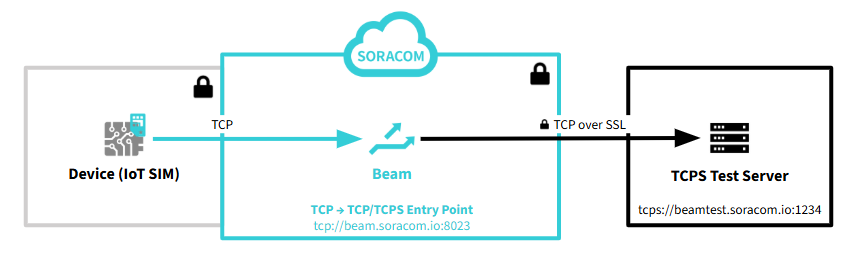
No special setup is required to use the TCPS test server. In this tutorial, you will add a TCP → TCP/TCPS entry point configuration and connect using telnet from your device.
Unified Endpoint does not support the TCP → TCP/TCPS entry point.
The device establishes a TCP connection with the TCP → TCP/TCPS entry point (beam.soracom.io:8023). The device does not need to know the TCPS test server URL.
Configuring TCP → TCP/TCPS Entry Point
Add a TCP → TCP/TCPS entry point configuration to your SIM group and assign your IoT SIM to the group.
Beam settings are configured at the group level. For more information about groups, see Groups.
-
In the SIM group settings screen, choose a group, then select Soracom Beam.
For detailed instructions on how to open the SIM Group settings screen, see Group Settings.
-
Click + Add Configuration and select TCP → TCP/TCPS entry point.
The Soracom Beam - TCP configuration screen appears.
-
Configure the following settings:
Item Value Configuration name Enter any name. Example: tcp over sslDestination > Protocol Select TCPS.Destination > Host name Enter beamtest.soracom.io.Destination > Port number Enter 1234.Header manipulations > IMSI Header Turn on. Header manipulations > SIM ID Header Turn on. For more information about TCP → TCP/TCPS entry point settings, see TCP → TCP/TCPS Entry Point.
-
Click Save.
-
Assign your IoT SIM to the group.
Beam configuration is now complete.
Connecting Using Telnet from Your Device
TCP communication to the TCP → TCP/TCPS entry point is forwarded through Beam to the TCPS test server. The test server returns a greeting message, which includes header values if header options are enabled in the Beam configuration. You can send and receive messages over the connection as long as it remains open.
Beam charges are incurred per request. A free tier is available. For more information, see Soracom Beam Pricing.
-
From a device using an IoT SIM configured with the TCP → TCP/TCPS entry point, connect to Beam using telnet:
telnet beam.soracom.io 8023Response:
Trying 100.127.127.100...
Connected to beam.soracom.io.
Escape character is '^]'.
Hello Soracom Beam Client! : imsi=295050012345678 simId=8942310000012345678
If the connection does not work as expected, check the error logs. For more information, see Soracom Beam Errors.
-
Enter
Hello!to confirm the test server's echo response:Hello! Hello!The TCPS test server echoes the received input.
Understanding the Response
The echo response is generated by the TCPS test server. The greeting message shows supported Soracom headers that were added by Beam based on the enabled header options in the Header manipulations section of your group configuration. In this example, IMSI and SIM ID headers are enabled. The TCPS test server returns only predefined Soracom headers and does not include custom headers configured in Beam.
If you turn off the IMSI Header and SIM ID Header options, the IMSI and SIM ID are not included in the response:
Trying 100.127.127.100...
Connected to beam.soracom.io.
Escape character is '^]'.
Disabling Beam Configuration
Beam charges are incurred per request. If you are not using Beam, disable the entry point configuration or remove the IoT SIM from the group.
- To stop forwarding requests via Beam, open your SIM group settings and disable or delete the TCP → TCP/TCPS entry point configuration.
- To remove an IoT SIM from a group, see Removing a Device from a Group.