Communicating with the HTTPS Test Server Using WebSocket
Use Beam's Website entry point and Soracom's HTTPS test server to verify how Beam forwards WebSocket connections.
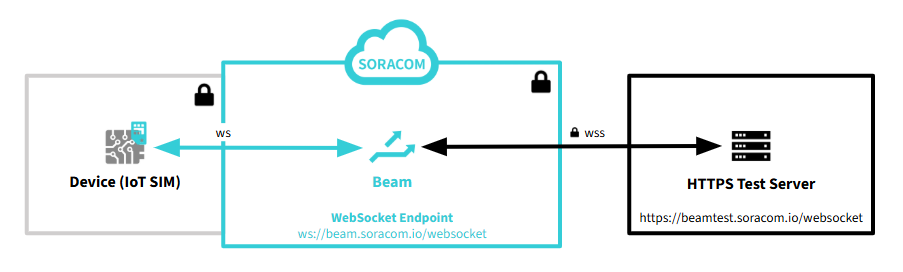
No special setup is required to use the HTTPS test server. In this tutorial, you will add a Website entry point configuration and initiate WebSocket communication from your device.
Unified Endpoint does not support WebSocket connections.
The device initiates WebSocket communication with the Website entry point at /websocket (ws://beam.soracom.io:18080/websocket). The device does not need to know the HTTPS test server URL.
Configuring Website Entry Point
Add a Website entry point configuration to your SIM group and assign your IoT SIM to the group.
Beam settings are configured at the group level. For more information about groups, see Groups.
-
In the SIM group settings screen, choose a group, then select Soracom Beam.
For detailed instructions on how to open the SIM Group settings screen, see Group Settings.
-
Click + Add Configuration and select Website entry point.
The Soracom Beam - Website configuration screen appears.
-
Configure the following settings:
Item Value Configuration name Enter any name. Example: WebSocketDestination > Protocol Select HTTPS.Destination > Host name Enter beamtest.soracom.io.Destination > Port number Leave blank. Header manipulations > IMSI Header Turn on. Header manipulations > SIM ID Header Turn on. For more information about Website entry point settings, see Website Entry Point.
-
Click Save.
-
Assign your IoT SIM to the group.
Beam configuration is now complete.
Initiating WebSocket Communication from Your Device
WebSocket communication with the Website entry point is forwarded through Beam to the HTTPS test server. The test server processes the HTTP headers and returns a greeting message containing the header information.
Beam charges are incurred per request. A free tier is available. For more information, see Soracom Beam Pricing.
-
From a device using an IoT SIM configured with the Website entry point, initiate a WebSocket connection to
ws://beam.soracom.io:18080/websocket.Example using wscat:
wscat -c ws://beam.soracom.io:18080/websocketResponse:
{ "message": "Hello SORACOM Beam Client", "headers": { "X-Soracom-Imsi": "295050012345678", "X-Soracom-Sim-Id": "8942310000012345678" }, "log": { "preSharedKey": "", "stringToSign": "", "calculatedSignature": "", "providedSignature": "", "trails": null } } -
Type
Hello from deviceand press Enter.> Hello from device < Hello from deviceThe test server echoes your input.
- Press Ctrl+C to close the connection.
If the connection does not work as expected, check the error logs. For more information, see Soracom Beam Errors.
Understanding the Response
The HTTPS test server returns a JSON response containing the message, headers added by Beam, and a log object.
If you turn off the IMSI Header and SIM ID Header options, the greeting message displays:
{
  "message": "Hello unknown client ...",
  "headers": {},
  "log": {
    "preSharedKey": "",
    "stringToSign": "",
    "calculatedSignature": "",
    "providedSignature": "",
    "trails": null
  }
}
The HTTPS test server generates the response. This is a feature of the test server, not the Website entry point.
Disabling Beam Configuration
Beam charges are incurred per request. If you are not using Beam, disable the entry point configuration or remove the IoT SIM from the group.
- To stop forwarding requests via Beam, open your SIM group settings and disable or delete the Website entry point configuration.
- To remove an IoT SIM from a group, see Removing a Device from a Group.