Soracom Query MCP Server
The Soracom Query MCP Server is an MCP (Model Context Protocol) server that lets AI agents run SQL queries against your own Soracom data through Soracom Query. When connected to an MCP client such as Claude, Claude Desktop, or ChatGPT, the agent can read the Soracom Query data dictionary, check how much of your query allowance is left, run a query, and return the results. That lets the agent answer questions about your fleet from your actual data instead of from general knowledge.
Unlike the Soracom Knowledge MCP Server, which searches public Soracom documentation and requires no login, this server reads the data in your Soracom account. It therefore requires you to sign in with your Soracom account, and the queries it runs count against your Soracom Query allowance.
The server is read-only with respect to your Soracom resources. It runs SELECT queries through Soracom Query and returns the results. It cannot create, modify, or delete IoT SIMs, groups, or any other resource in your account.
Requirements and Charges
The server is available to every Soracom account that can use Soracom Query, and there is nothing to install or apply for. Queries run through it are charged under your Soracom Query plan, on the same terms as queries run in Soracom Query Studio.
Plans and Free Queries
Queries run through this server consume the allowance of your Soracom Query plan for the selected coverage type. Accounts that are not subscribed to a Business or Enterprise plan use the Free plan, which includes a fixed number of free queries. For the plans and what each includes, see Soracom Query Plans.
You do not have to be the Root user. A SAM user can run queries through this server, provided its permissions allow the Analysis:* API operations that Soracom Query uses. Signing in as the Root user is required only to subscribe to a Business or Enterprise plan.
Soracom Query access cannot be restricted to specific standard tables or IoT SIMs. A user who can run Soracom Query can read all of the data in Soracom Query's standard tables, and restricting a SAM user's SIM permissions does not restrict what Query returns. User tables additionally require permission to read their CSV files in Harvest Files.
Coverage Types
Soracom Query plans and free queries are tracked separately for Global coverage and Japan coverage. A single server endpoint serves both: every tool takes a coverage parameter of jp for Japan coverage or g for Global coverage, and you can query any coverage type that is enabled for your Soracom account.
When coverage is omitted, get_query_schema, start_query, get_query_result, and get_query_export default to jp. get_query_usage has no default and always requires an explicit coverage. Use the same coverage when you start a query, poll for its result, and export it.
What Counts as a Query
A query started through this server counts against your allowance for the selected coverage type, the same as a query run in Soracom Query Studio or issued through the Soracom API or CLI. Only start_query can consume the allowance. A query counts once it has started running, including one that later times out or fails after the SQL has run. A query rejected before it runs, such as one with a SQL error, does not count. Reading the schema, checking usage, retrieving the result of a query you have already started, and exporting that result never consume anything.
An agent can run queries repeatedly without asking you each time, so an agent left working unattended can use up a large part of your allowance in a single session. Because every query that runs counts, a long exploratory session costs more than one well-aimed question. This matters most on the Free plan, where the free queries are a total allowance that is never replenished. Have the agent call get_query_usage before a long piece of analysis, and check your remaining queries periodically, as described in Plan Usage.
Queries run through this server are recorded in the same way as queries run in the User Console, and your usage figures do not distinguish between the two. If you want to know how much of your allowance an agent used, check your remaining queries before and after the session. The agent's share cannot be separated out afterwards.
Connecting the Server
Soracom Query is published as a connector in the Claude and ChatGPT directories, so in both clients you add it by name rather than by entering a URL. Adding it prompts you to sign in to Soracom and authorize access, and the tools become available once you approve.
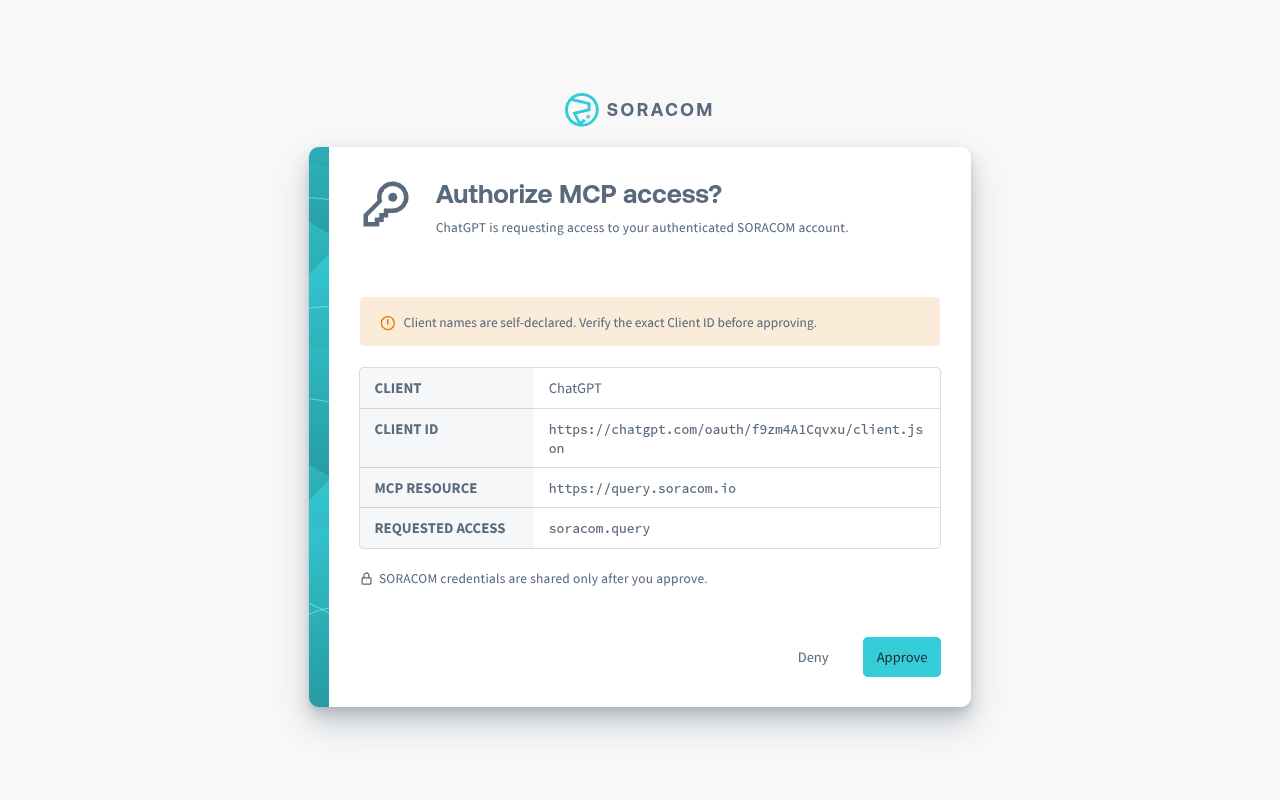
The authorization page shows the requesting client, its client ID, the MCP resource (https://query.soracom.io), and the requested access (soracom.query). Client names are self-declared, so check the client ID before you approve: it is a URL on the client vendor's own domain, beginning https://claude.ai/ for Claude and https://chatgpt.com/ for ChatGPT. If the client ID is on any other domain, or you did not expect the authorization request, click Deny.
Authorization is per user and grants the soracom.query scope.
Because the agent inherits the permissions of whoever authorized it, connect as a SAM user rather than as the Root user, and give that SAM user permission to use Soracom Query and nothing else. If you query user tables, also give it permission to read their CSV files in Harvest Files.
The agent's access lasts as long as the Soracom credential it received when you authorized it remains valid. When it expires, authorize the connector again before the tools can run queries. To end access sooner, remove the connector in your client — Disconnect or Remove in Claude, Uninstall in ChatGPT.
Queries you write, and the data returned by them, are sent to the AI service behind your MCP client and processed under that service's terms — not Soracom's. Before you connect, decide whether all of the Query data may be sent to that service, and review your client provider's data handling terms. For Soracom's own terms and privacy practices, see the Terms and Conditions and Privacy Policy.
Claude
Soracom Query is listed in the Claude connector directory.
-
In the sidebar, open Customize and click Connectors.
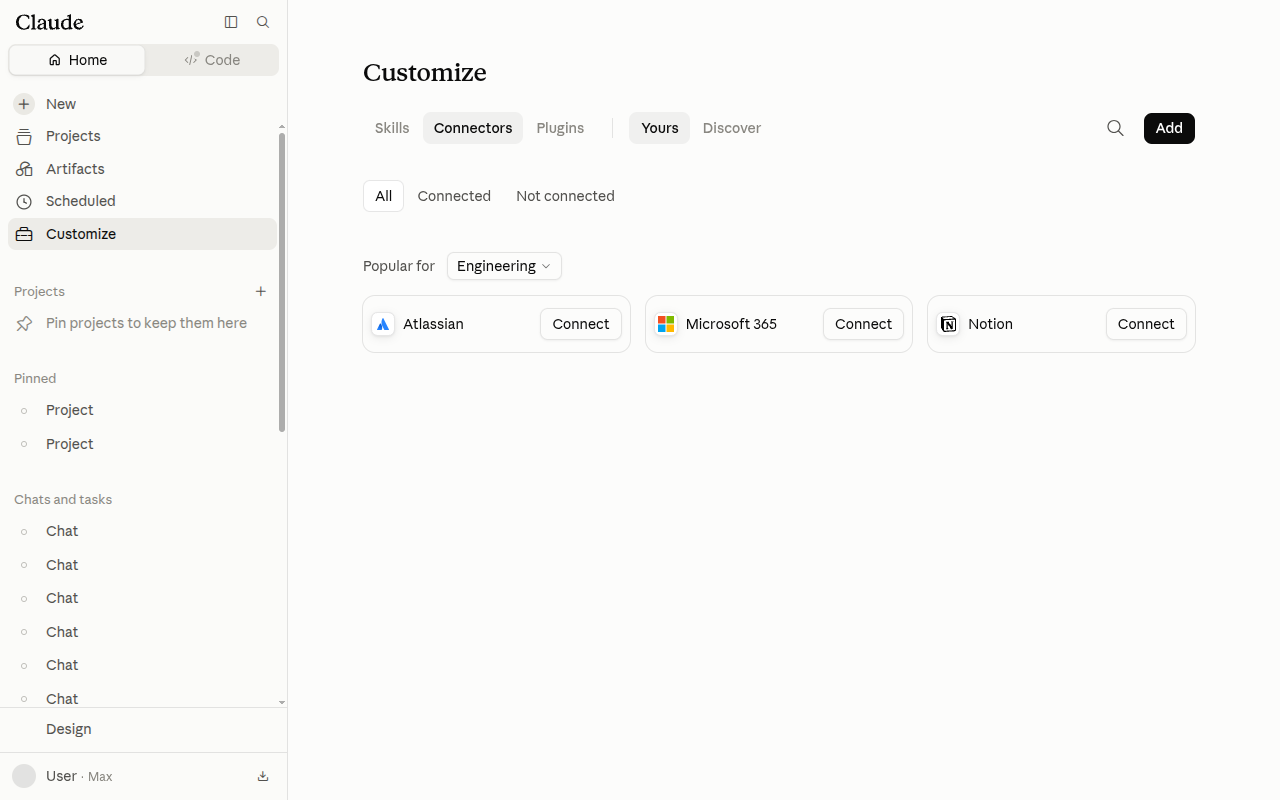
-
Click Discover, search for
Soracom, and select Soracom Query.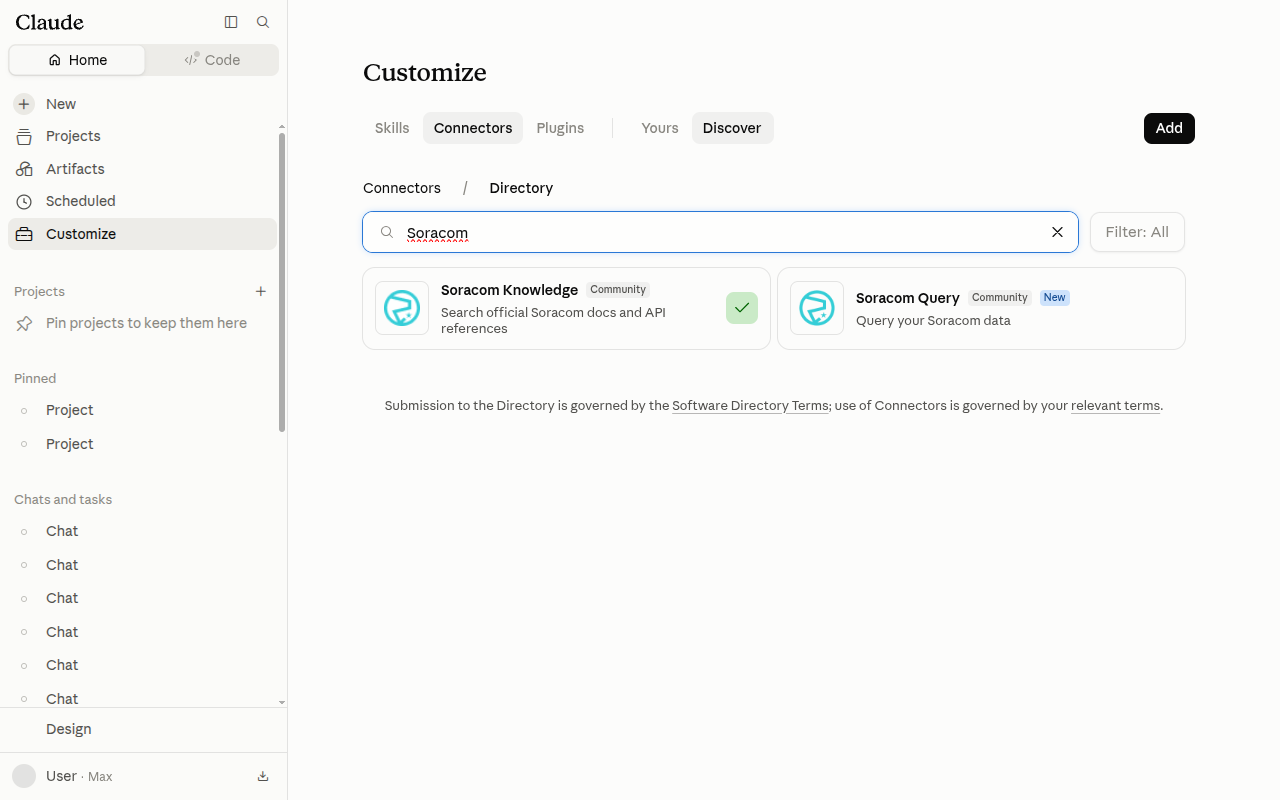
The search results also list Soracom Knowledge, which is a different connector: it searches Soracom's public documentation, while Soracom Query runs SQL against the data in your own Soracom account. This page describes Soracom Query. For the documentation search connector, see the Soracom Knowledge MCP Server.
-
Click Connect to Claude.
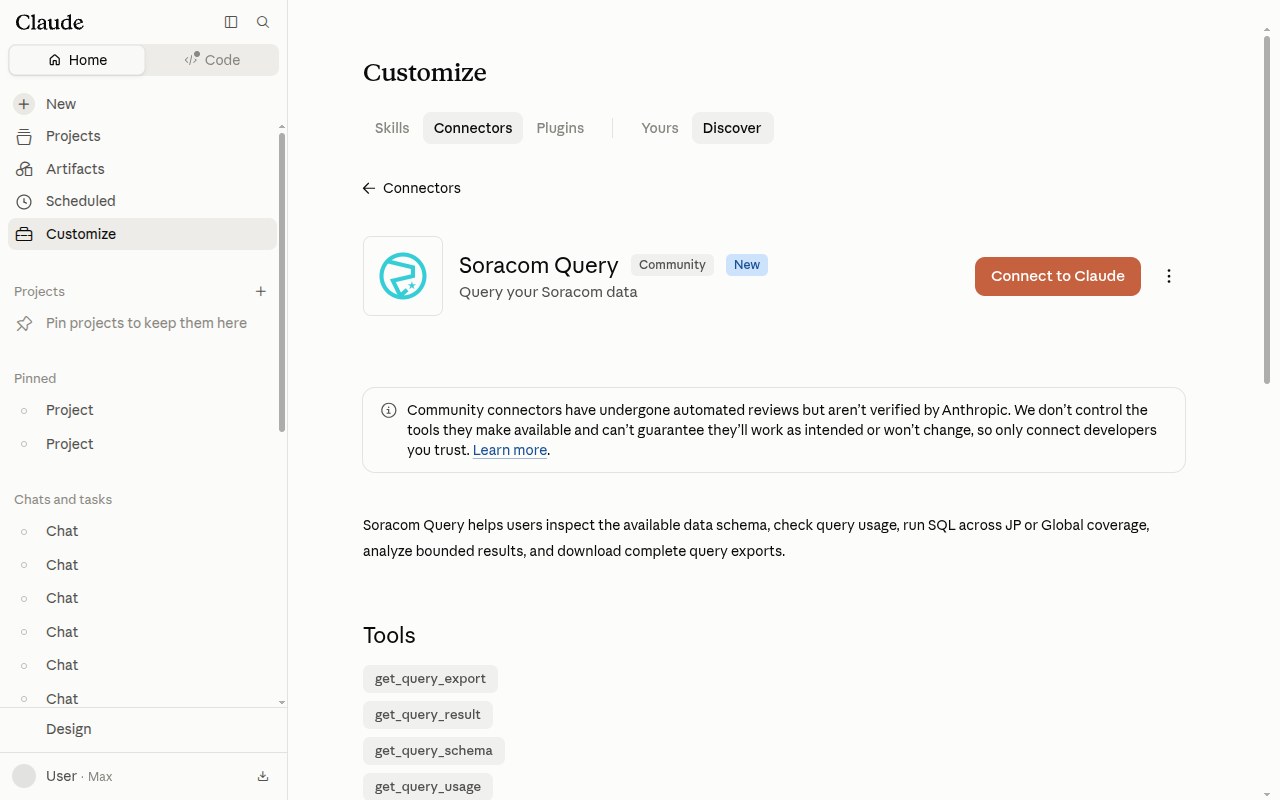
-
Sign in to Soracom if you are not signed in already, review the authorization request, and click Approve.
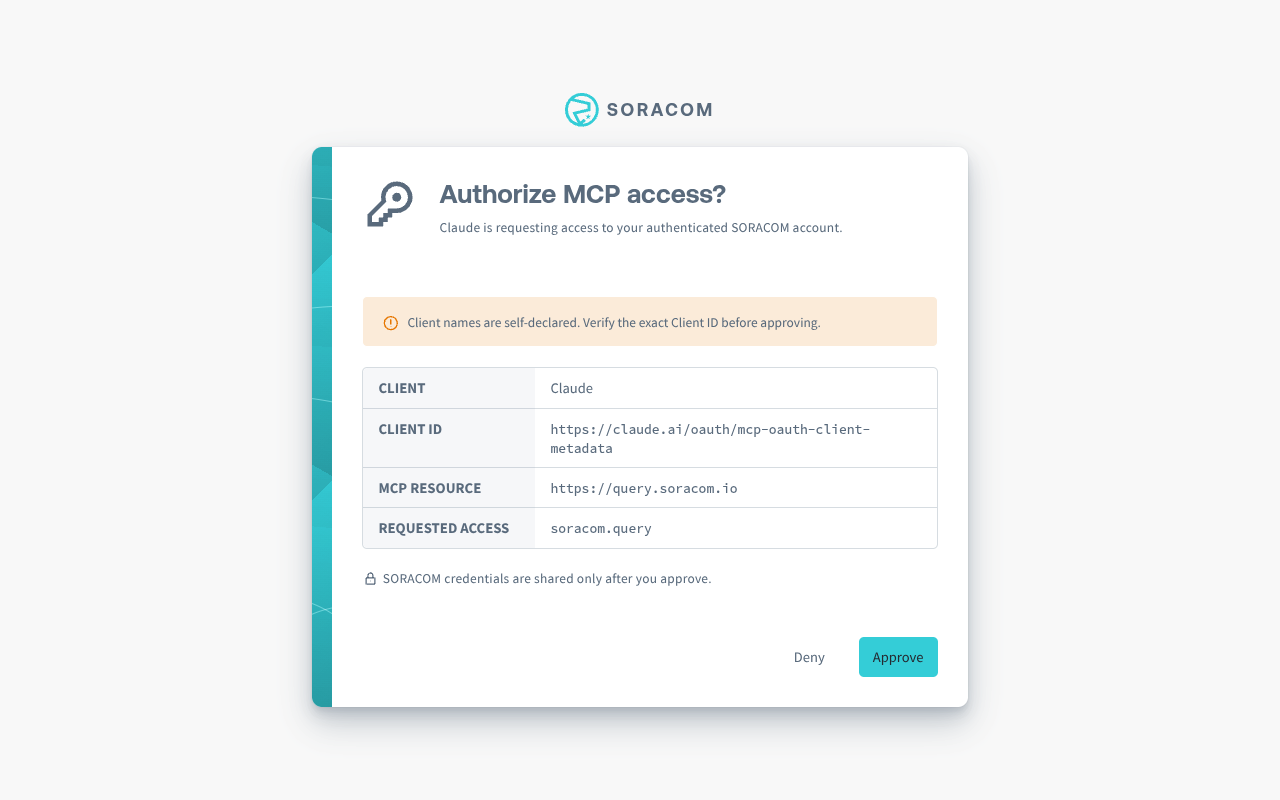
-
The connector is now connected and the five tools are available in your conversations. To review them, open Customize > Connectors, select Soracom Query, and check Tool permissions.
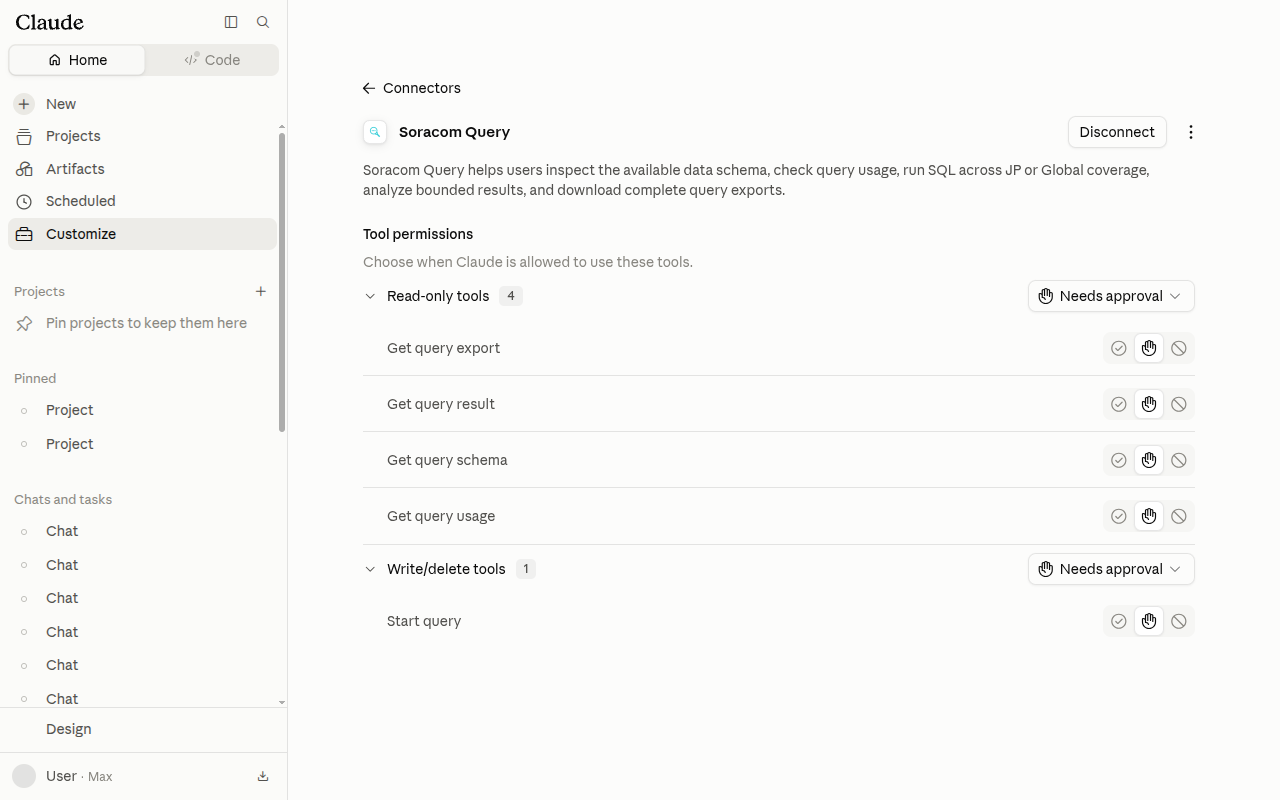
Claude sets every tool to Needs approval by default, so it asks before each call. start_query is grouped with the write tools because it consumes your query allowance; the other four are read-only. You can change this per tool or per group under Tool permissions.
To stop using the server, click Disconnect on the same screen.
ChatGPT
Soracom Query is listed in the ChatGPT plugin directory.
-
Open Settings > Plugins and click Browse plugins. You can also open Plugins from the sidebar.
-
Search for
Soracomand select SORACOM Query.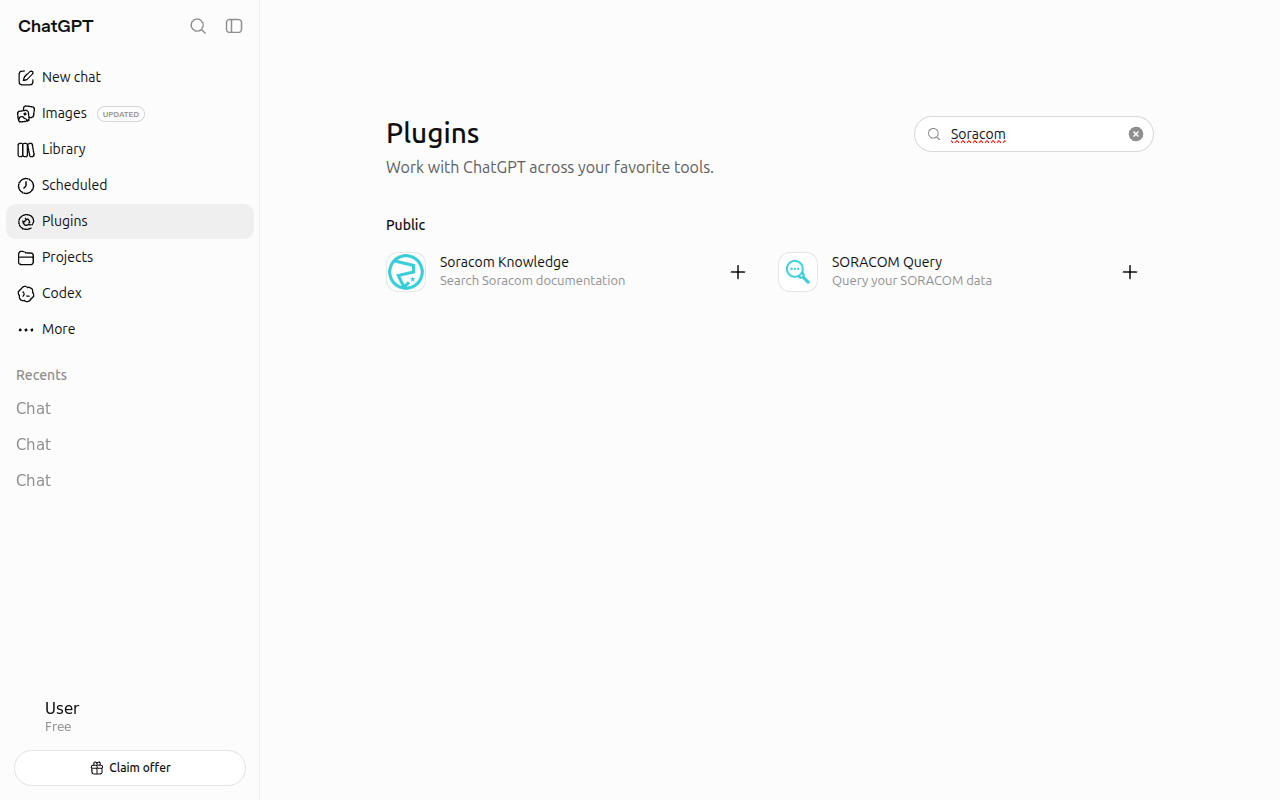
-
Click Install plugin.
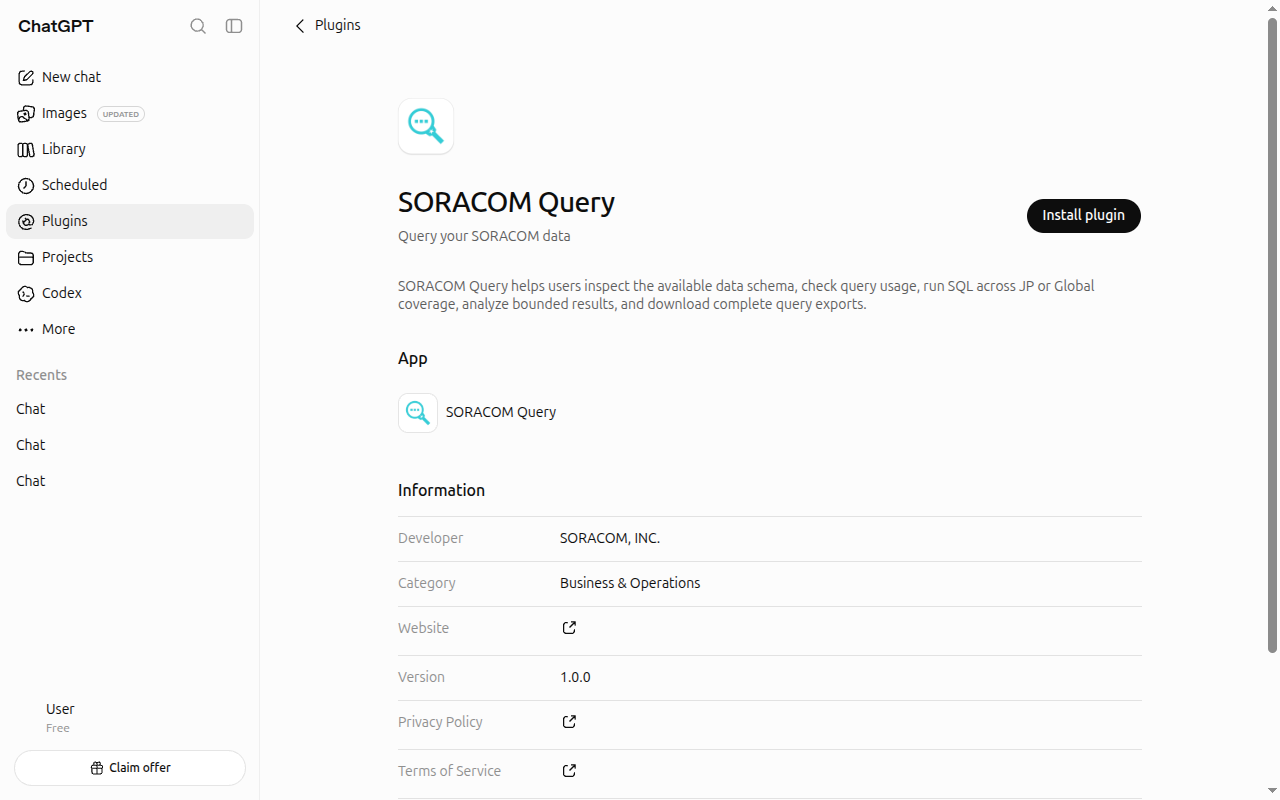
-
Sign in to Soracom if you are not signed in already, review the authorization request, and click Approve.
-
Open Settings > Plugins, select SORACOM Query, and check Connection. If it still shows Connect, click it, then click Sign in with SORACOM Query and approve the request again.
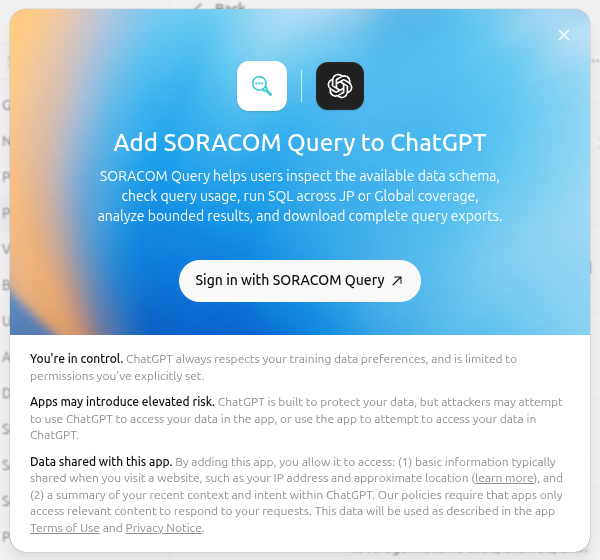
When the connection is complete, Connection shows SORACOM Query and the five tools are listed as read actions and write actions.
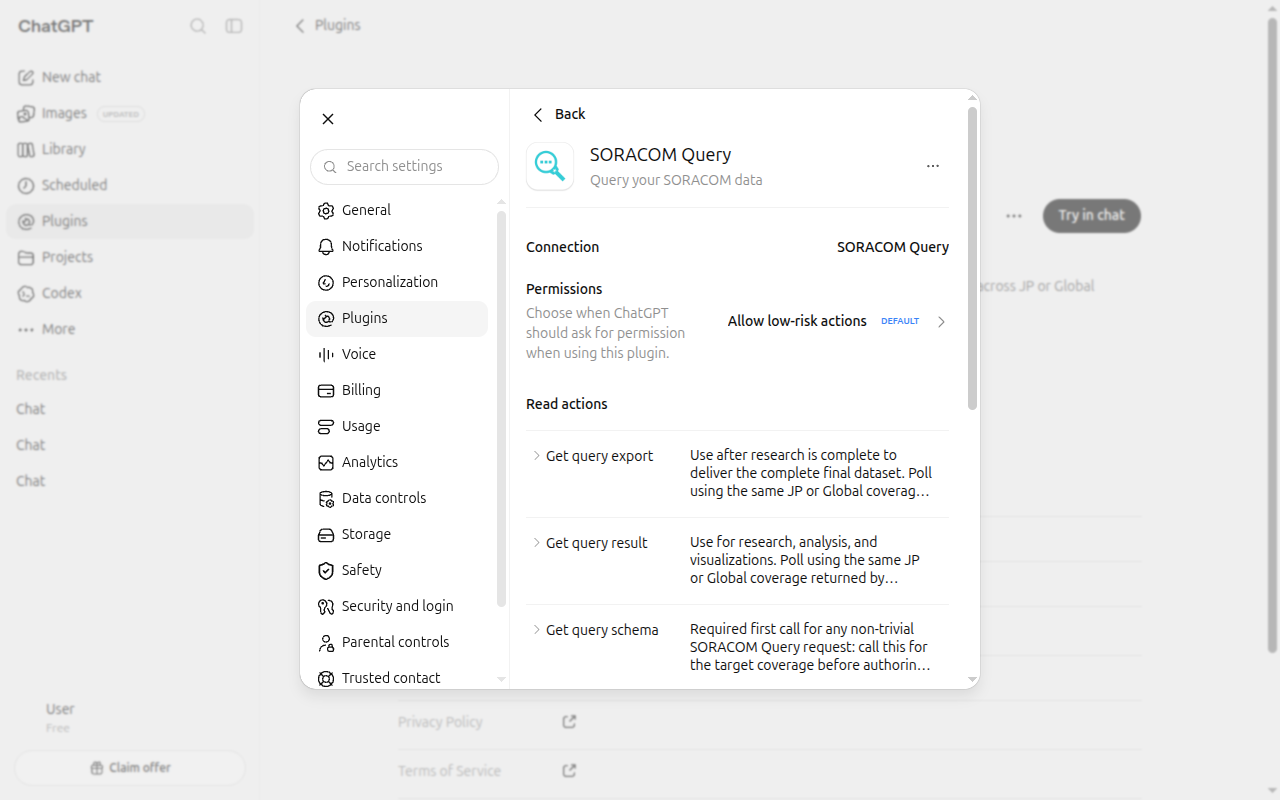
ChatGPT sets Permissions to Allow low-risk actions by default. You can change this on the same screen, where the tools are grouped into read actions and write actions.
To stop using the server, select Uninstall from the plugin's actions menu.
Other MCP Clients
The server is also reachable directly at a stable public HTTPS endpoint, using the MCP Streamable HTTP transport:
https://query.soracom.io/mcpAny MCP client that supports remote servers over Streamable HTTP with OAuth can connect using this URL. Claude and ChatGPT also accept it as a custom connector, but the directory listing is the simpler route in both.
Verifying a Connection
To check the endpoint independently of any client, use the MCP Inspector with the Streamable HTTP transport. After signing in, the five tools described below should appear.
Available Tools
The server exposes five tools to the connected agent. Running a query is a two-step process: start_query submits the SQL and returns a query ID, then get_query_result or get_query_export is polled with that ID until the query finishes.
get_query_schema
Returns the complete Soracom Query data dictionary for the selected coverage type, describing the available views, their columns, the supported join paths, time-range rules, and data freshness. Agents are expected to call this before writing SQL rather than guessing at table and column names.
| Parameter | Description |
|---|---|
coverage |
jp for Japan coverage or g for Global coverage. Optional, and defaults to jp. |
get_query_usage
Reports the query allowance for a coverage type: the number of executions allowed and used, the number remaining, and whether the allowance is exhausted. This tool does not consume your allowance, so an agent can check it before running an expensive analysis.
On the Business plan, the figures cover the 2,000 queries included each month. Queries continue once those are used up, and each additional query is charged.
The exhausted flag means different things depending on the plan. On the Free plan it means no further queries can run. On the Business plan it means the included queries are used up and further queries are charged. On the Enterprise plan, the terms of your contract apply.
| Parameter | Description |
|---|---|
coverage |
jp for Japan coverage or g for Global coverage. Required — this tool has no default. |
start_query
Submits a SQL query and returns a query ID to poll with. This is the only tool that consumes your query allowance.
| Parameter | Description |
|---|---|
sql |
The SQL to run, between 1 and 3,000 characters. |
coverage |
jp for Japan coverage or g for Global coverage. Optional, and defaults to jp. |
from |
Optional start of the time range to query, as an ISO 8601 timestamp including a UTC offset. |
to |
Optional end of the time range. Requires from, and must be later than from. |
get_query_result
Returns the rows produced by a query as typed JSON, for the agent to read and reason about. While the query is still running, the tool reports its status instead, and the agent polls until the query completes.
| Parameter | Description |
|---|---|
queryId |
The query ID returned by start_query. |
maxRows |
The number of rows to return, between 1 and 1,000. Defaults to 100. |
coverage |
Must match the coverage used to start the query. Optional, and defaults to jp. |
Results returned through this tool are also limited to 1 MiB once serialized. When a result is cut short by either the row limit or the size limit, the response says so and gives the reason, so that neither you nor the agent mistakes a truncated result for a complete one.
get_query_export
Returns a temporary download link for the complete result of a query. No row or size limit is applied. Use this to deliver a finished dataset to a person, rather than to feed data to the agent — a full export is often far larger than a model can read.
| Parameter | Description |
|---|---|
queryId |
The query ID returned by start_query. |
format |
csv (default), parquet, or jsonl. JSONL files are gzip-compressed. |
coverage |
Must match the coverage used to start the query. Optional, and defaults to jp. |
The download link grants access to the complete query result to anyone holding it, until it expires. Treat it as confidential: do not paste it into shared channels, tickets, or logs.
Notes and Limitations
- The limits of your Soracom Query plan apply unchanged. On the Free and Business plans, a single query may run for up to 60 seconds and cover a period of up to 40 days. You can query data from up to 731 days ago, provided it is still within the source service's retention period. For Harvest Data, the retention period is 40 days by default or 731 days with the Extended Data Retention option enabled. Enterprise limits are set by your contract.
- The agent writes the SQL. Ask it to show you the query it ran, and check that the query matches your question before you rely on the answer — a query that runs successfully can still be the wrong question.
- Answers generated by an AI agent are not guaranteed to be accurate, and the data returned by this server is provided "AS-IS". Verify important figures in Soracom Query Studio before acting on them.
- Specifications may change without notice as the service is improved.
Terms of Use
- Use of the Query MCP Server is governed by the Soracom Query terms applicable to your region. This page does not modify those terms.
- You choose your MCP client and AI provider. Your relationship with that provider is governed by your agreement with them, not with Soracom.
- Any user permitted to execute Soracom Query via the MCP Server can access all standard tables supported by Query, regardless of other SAM permissions. SAM controls whether Query can be invoked, not which tables or rows are returned. User tables (Harvest Files) require separate Harvest Files read permission. Configure user permissions accordingly.
- Your inputs, generated SQL, and query results (including IoT SIM, billing, and data stored in Harvest Data and Harvest Files) are sent to your AI provider and handled under its terms.